AI Assistant
The AI Assistant is a chat-based panel that helps you plan, write, and refine your demo content. It can read your sketches, generate planning rows, improve narrative text, and make surgical edits — all through natural conversation.
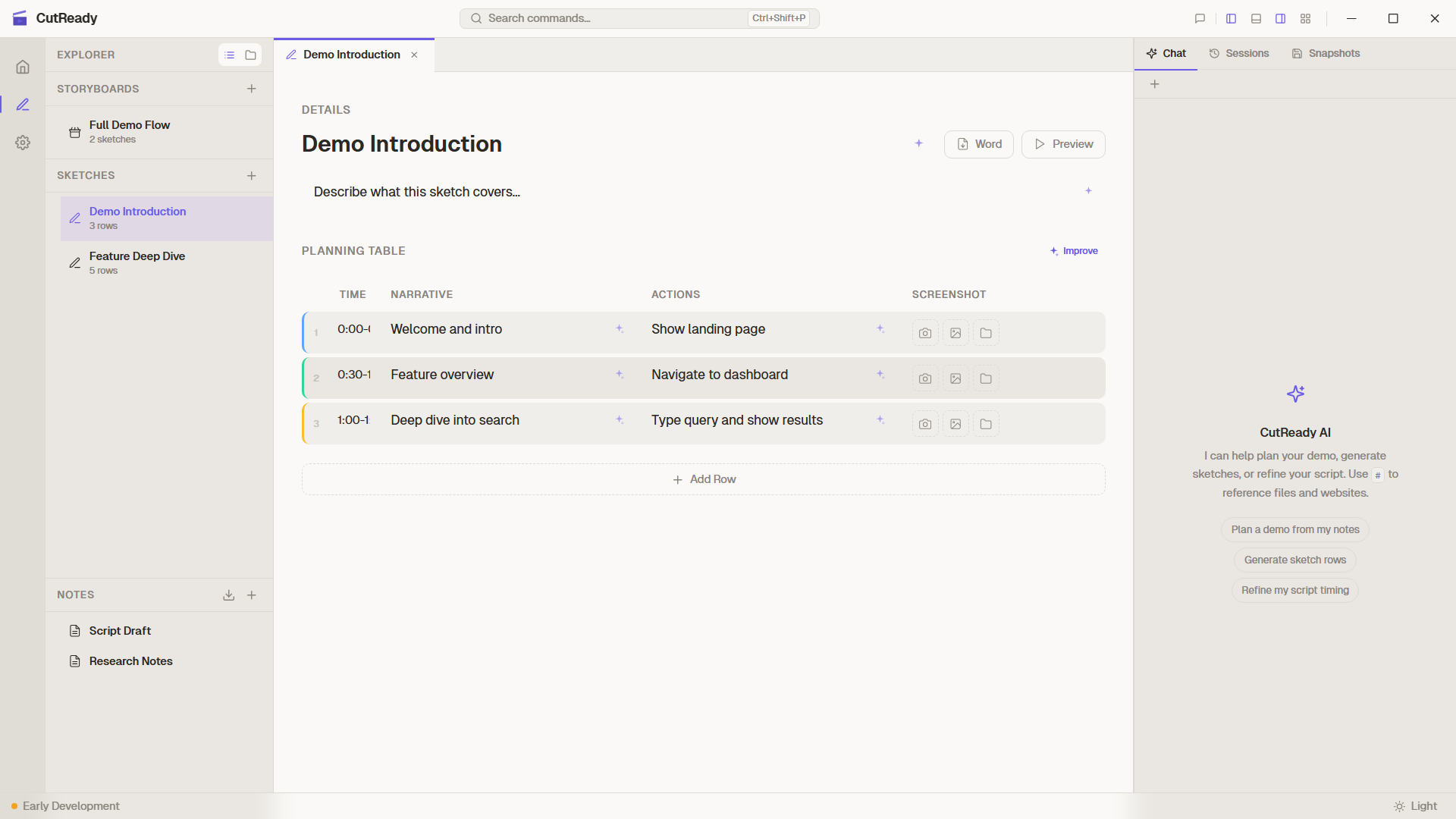
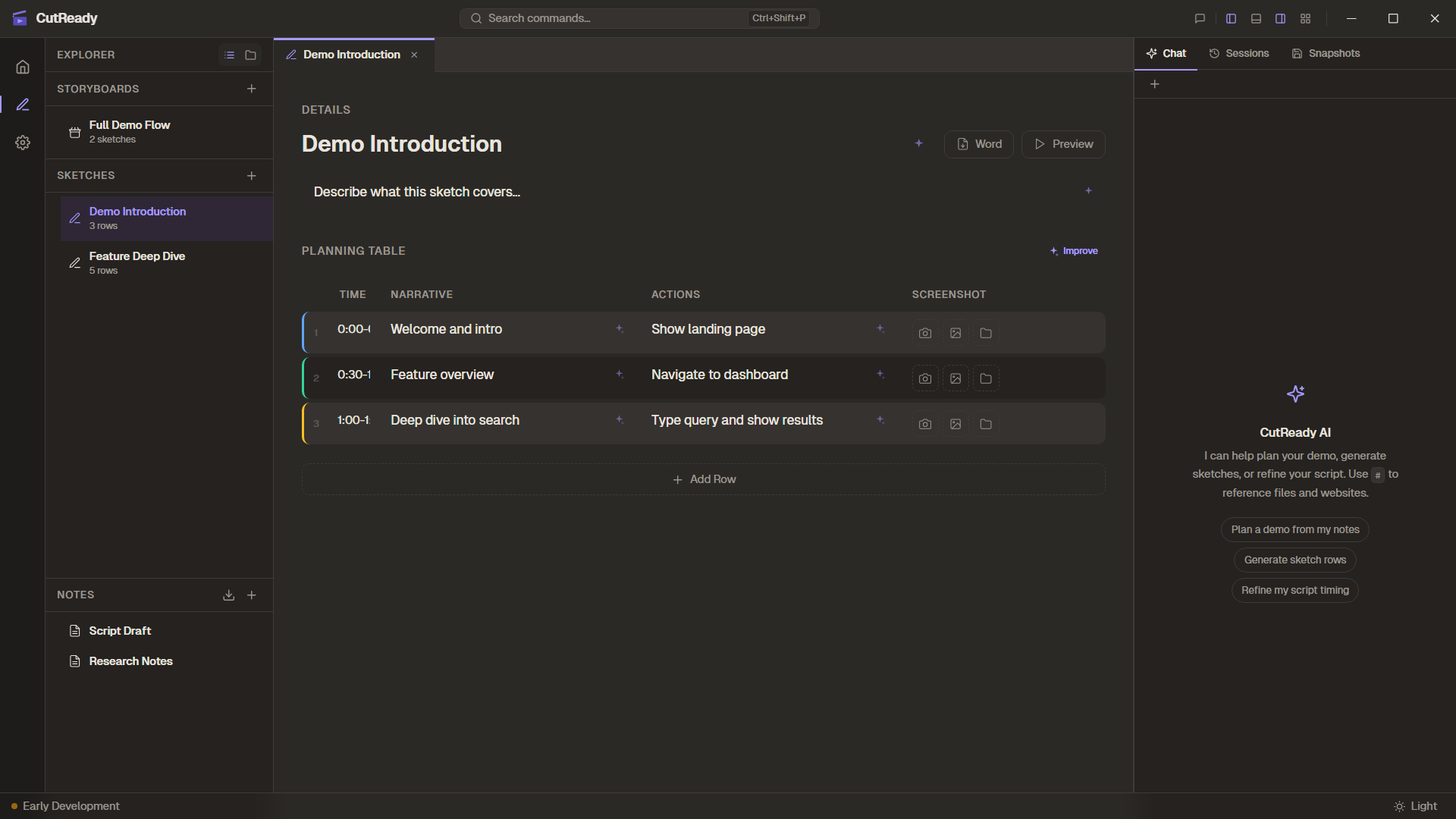
Chat Panel
Section titled “Chat Panel”The chat panel sits alongside your editor and provides a familiar messaging interface:
- Send messages by typing in the input field and pressing Enter
- Streaming responses appear in real-time as the AI generates output
- Message history is preserved for the current session
- Session persistence — chat history is saved per project, so you can pick up where you left off
Built-in Agents
Section titled “Built-in Agents”CutReady includes four specialized agents, each tuned for a different task:
| Agent | Purpose | Best for |
|---|---|---|
| Planner | Sketch planning and structure | Generating planning rows, organizing demo flow |
| Writer | Narrative refinement | Improving voiceover text, making scripts engaging |
| Editor | Surgical edits | Precise changes to specific cells or rows |
| Designer | Row visuals and design planning | Creating Elucim DSL visuals with English design briefs for sketch rows |
Switch between agents using the agent selector dropdown at the top of the chat panel. Each agent has a distinct system prompt that shapes its behavior.
Tool Calls
Section titled “Tool Calls”The AI doesn’t just chat — it can read and modify your project files through tool calls. When the assistant needs to interact with your content, it invokes backend tools:
| Tool | What it does |
|---|---|
list_project_files |
Lists sketches, notes, storyboards, and optionally screenshots |
read_note / write_note |
Reads or writes markdown notes |
read_sketch / write_sketch |
Reads a sketch or replaces its planning rows, keeping narration and visuals on rows it carries over |
update_planning_row |
Updates a single row by index without rewriting the whole sketch |
read_storyboard / write_storyboard |
Reads, creates, or updates storyboard metadata and sequence |
design_plan |
Saves the Designer agent’s plain-English visual brief for a row |
set_row_visual |
Saves or removes an Elucim DSL visual for a row |
delegate_to_agent |
Hands a focused subtask to another built-in or custom agent |
fetch_url |
Fetches a URL and appends a structured links section for follow-up browsing |
search_web |
Searches the public web when Internet Search is enabled |
recall_memory / save_memory |
Reads or saves workspace memory for reusable project context |
Tool calls happen automatically as part of the conversation. You’ll see the results reflected in your editor in real-time.
Activity Panel
Section titled “Activity Panel”The Activity Panel provides a real-time log of everything the AI does behind the scenes:
- Actions are displayed newest-on-top for easy scanning
- Errors and warnings are color-coded for quick identification
- Tool calls, file reads, and modifications are all logged
- Sparkle button actions (silent prompts) appear here instead of in the chat
Reference Autocomplete
Section titled “Reference Autocomplete”Type @ in the chat input to trigger autocomplete for project file references. This lets you mention specific sketches, notes, or storyboards inline so the AI knows exactly which document you’re referring to.
References appear as color-coded chips that match the file type:
- Sketches — violet
- Notes — rose/pink
- Storyboards — emerald/green
- Web URLs — blue
Referenced files are shown as footnotes at the end of messages, making it easy to see what context the AI is working with.
Web Context and Search
Section titled “Web Context and Search”The assistant can use public web context in two different ways:
- URL references — Paste a URL or type
@https://example.comto reference a website. The assistant can callfetch_urlto read that page. The result includes a “Links on this page” section, so the agent can follow links when you ask it to. - Internet Search — Enable Settings → AI Provider → Internet Search to
expose the
search_webtool for current public information. Search is opt-in, and project content is not sent to a public search query unless you explicitly ask for that.
Custom Agents
Section titled “Custom Agents”Beyond the built-in agents, you can define custom agents in Settings with your own system prompts. Custom agents appear in the agent selector alongside the built-in options and are useful for specialized tasks like writing for a particular audience or following specific style guidelines.
AI Change Highlighting
Section titled “AI Change Highlighting”When the AI modifies sketch planning rows, the affected rows are highlighted to show exactly what changed:
- Modified rows get a visual highlight with inline diffs showing the before/after text
- Each highlighted change includes an undo button to revert individual modifications
- The “Show AI Changes” button in the toolbar lets you re-view the last set of AI-applied highlights at any time
This makes it easy to review, accept, or reject AI suggestions row by row.
Vision Support
Section titled “Vision Support”The AI assistant can process images alongside text. When enabled, screenshots from your sketches and notes are sent to the model for visual context:
| Mode | Behavior |
|---|---|
| Off | No images sent to the AI |
| Notes only | Images embedded in notes are included |
| Notes + Sketches | Images from both notes and sketch rows are included |
Configure vision support in Global Settings → AI Provider or override it
per workspace. Vision requires a model that supports image inputs (e.g.,
gpt-4o).
LLM Compaction
Section titled “LLM Compaction”Long conversations can exceed a model’s context window. CutReady handles this with smart conversation compaction:
- When the conversation approaches the context limit, older messages are summarized and condensed automatically
- The AI retains key context and decisions from earlier in the conversation
- Compaction is transparent — the conversation continues seamlessly
CutReady uses model capability metadata when available, including the model’s context length, so compaction can happen at the right point for the selected model.
Responses API
Section titled “Responses API”CutReady automatically routes requests to the OpenAI Responses API when using codex or pro-series models. This happens transparently — no configuration needed. For standard models, the regular Chat Completions API is used.