Settings
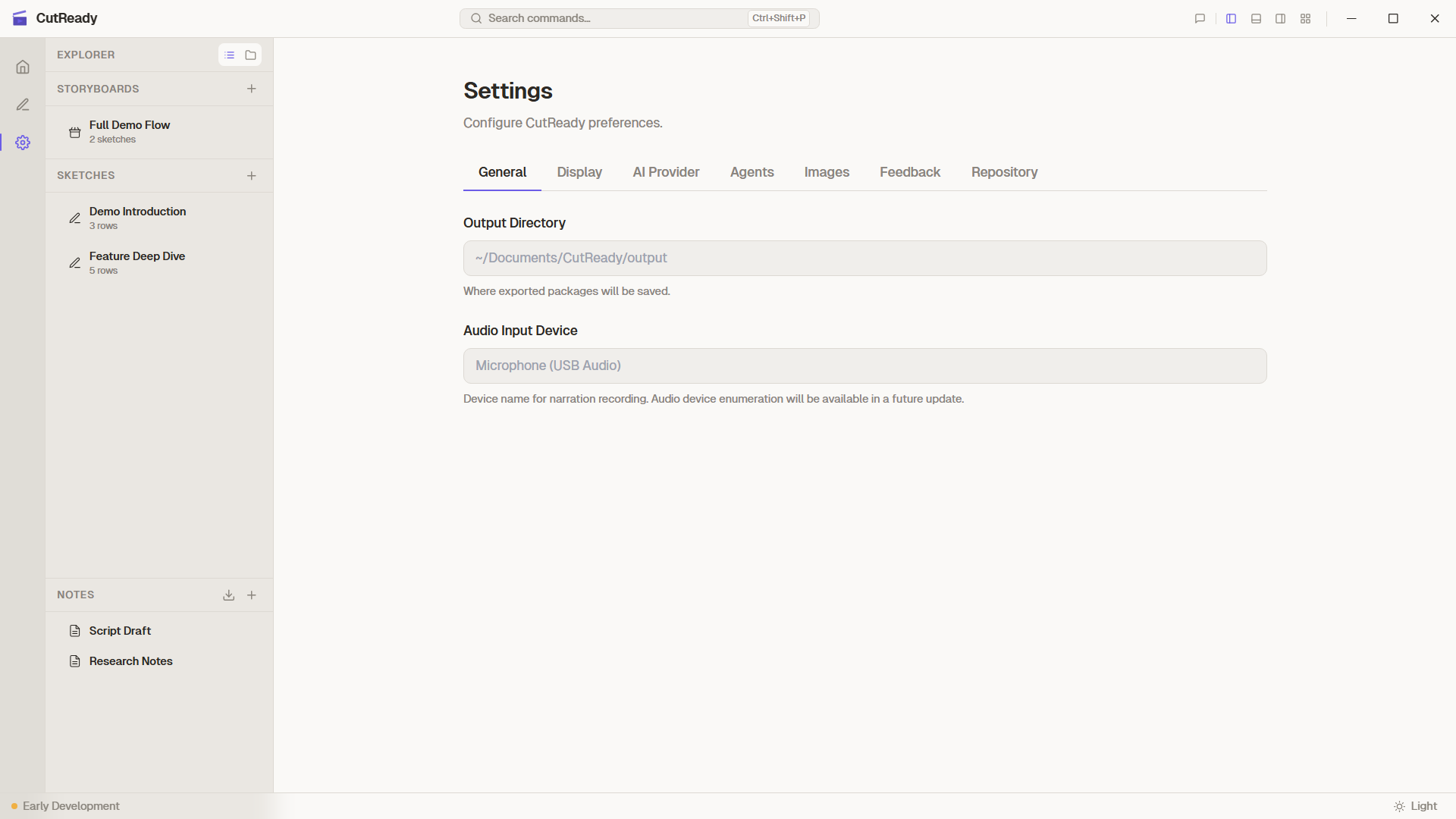
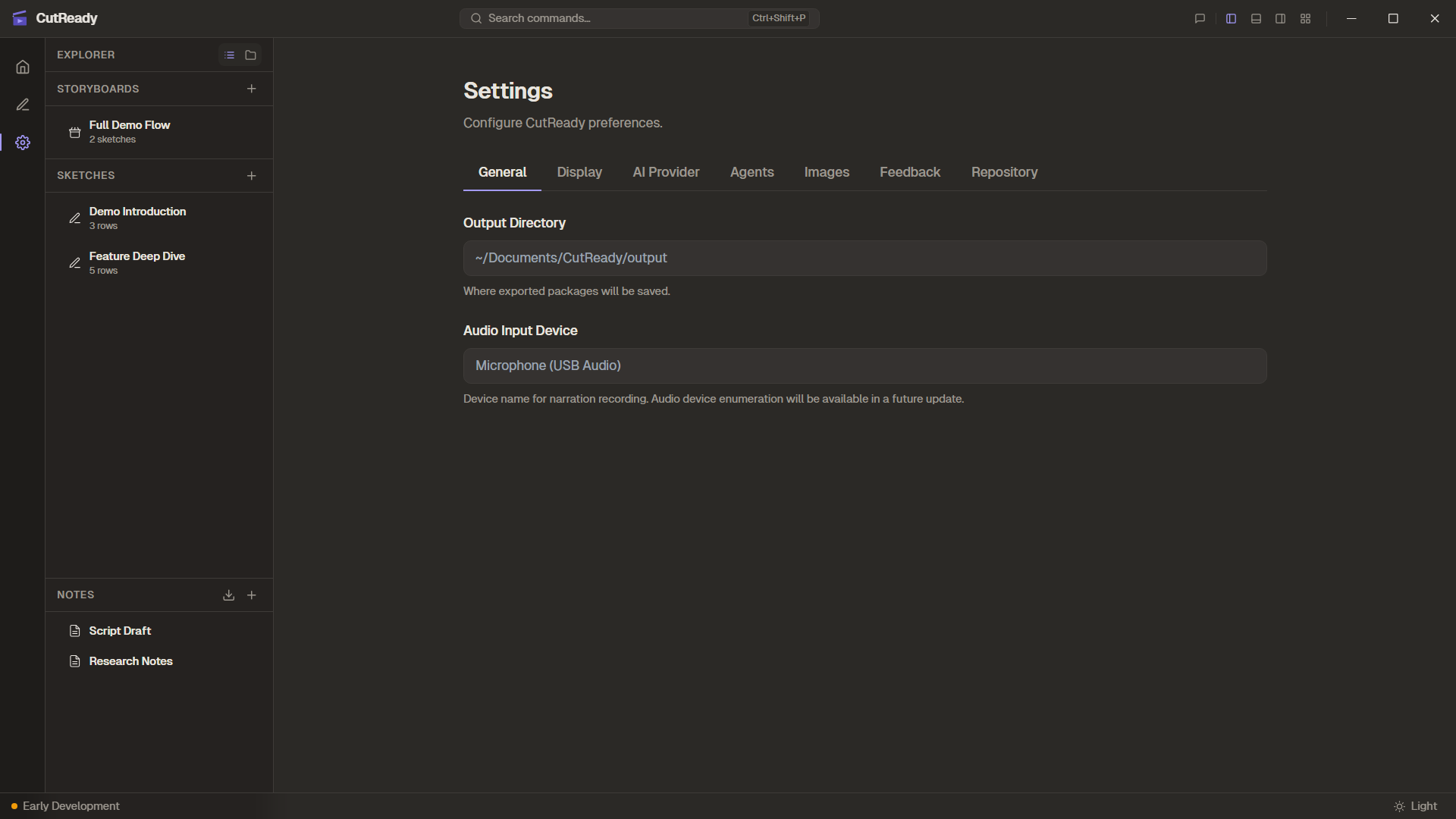
CutReady has two levels of settings: Global settings that apply everywhere, and Workspace settings that apply to the current workspace and can override global defaults. Both open as full-width panels (no sidebar).
Global Settings
Section titled “Global Settings”Open global settings from the gear icon (⚙️) pinned to the bottom of the sidebar. Global settings apply across all workspaces.
Profile
Section titled “Profile”Set the name and email CutReady signs your snapshots with. Your profile is saved on this computer, not in the workspace, so each collaborator keeps their own.
If you leave it empty, manual saves use the first name and email CutReady finds. Automatic workspace saves require a complete saved profile:
- Your profile — the values saved in this tab.
- Environment —
GIT_AUTHOR_NAMEandGIT_AUTHOR_EMAIL. - Git config —
user.nameanduser.emailfor the workspace, or your global git config. - System username — a name only.
The tab shows which source each value came from. If no email is found, CutReady asks for your name and email the first time you save a snapshot. Changes CutReady saves for you, like adding or renaming a project, save only the files they touch. Automatic saves require a complete identity in your CutReady profile; a detected Git identity alone isn’t used for these saves. They stay in your pending changes, with a notice, if your profile is missing or those files already had unsaved edits. Select Use detected to clear your profile and go back to the detected values.
Display Preferences
Section titled “Display Preferences”Configure the visual appearance of CutReady:
- Text size — Adjust the base font size for the editor
- Row density — Choose between compact and comfortable row spacing
- Color palette — Select a color theme
- Editor width — Set the preferred width for editing panels
Theme Preferences
Section titled “Theme Preferences”Choose the app theme and palette. Theme settings apply immediately and can also be overridden per workspace.
Provider Selector
Section titled “Provider Selector”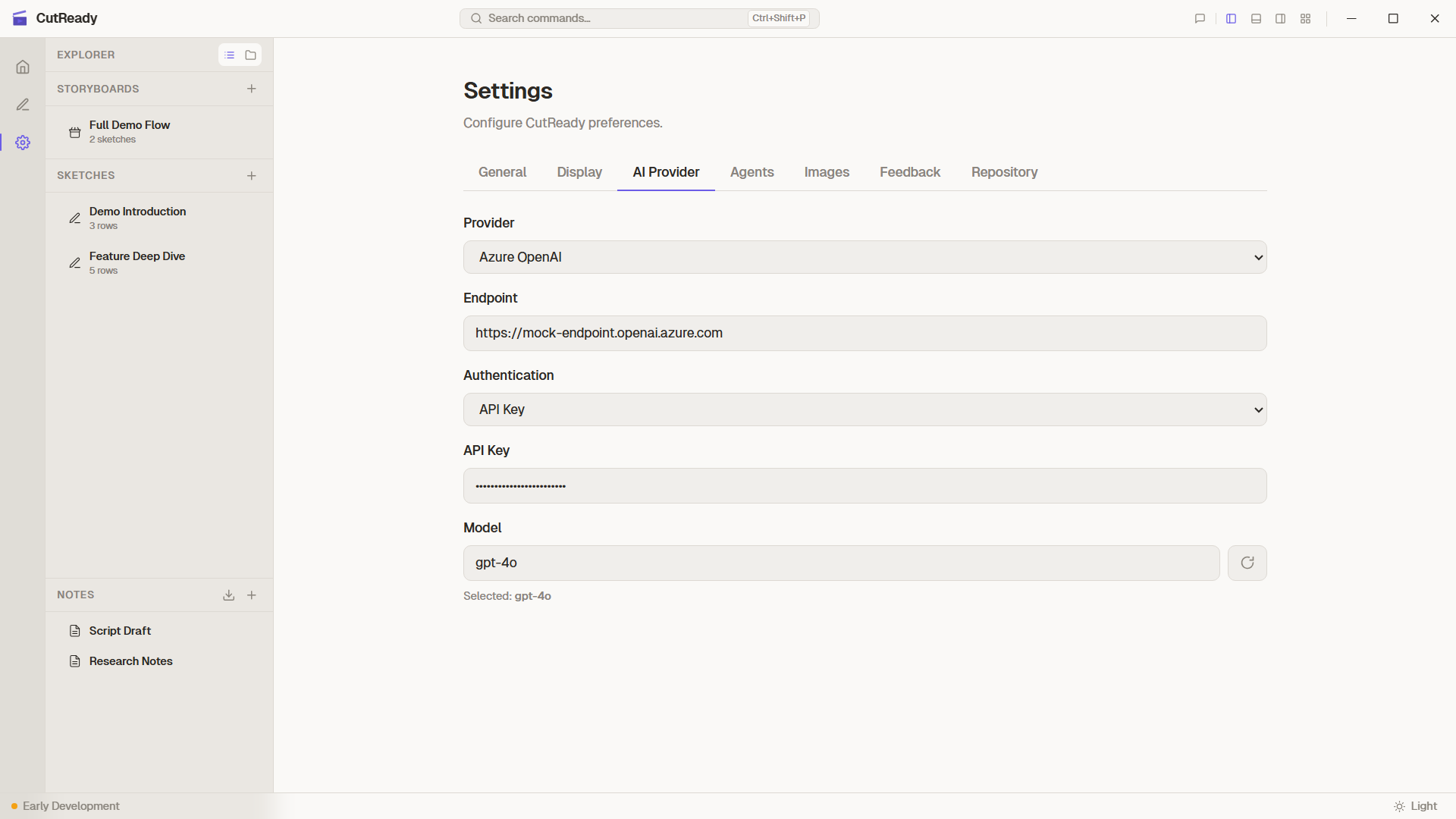
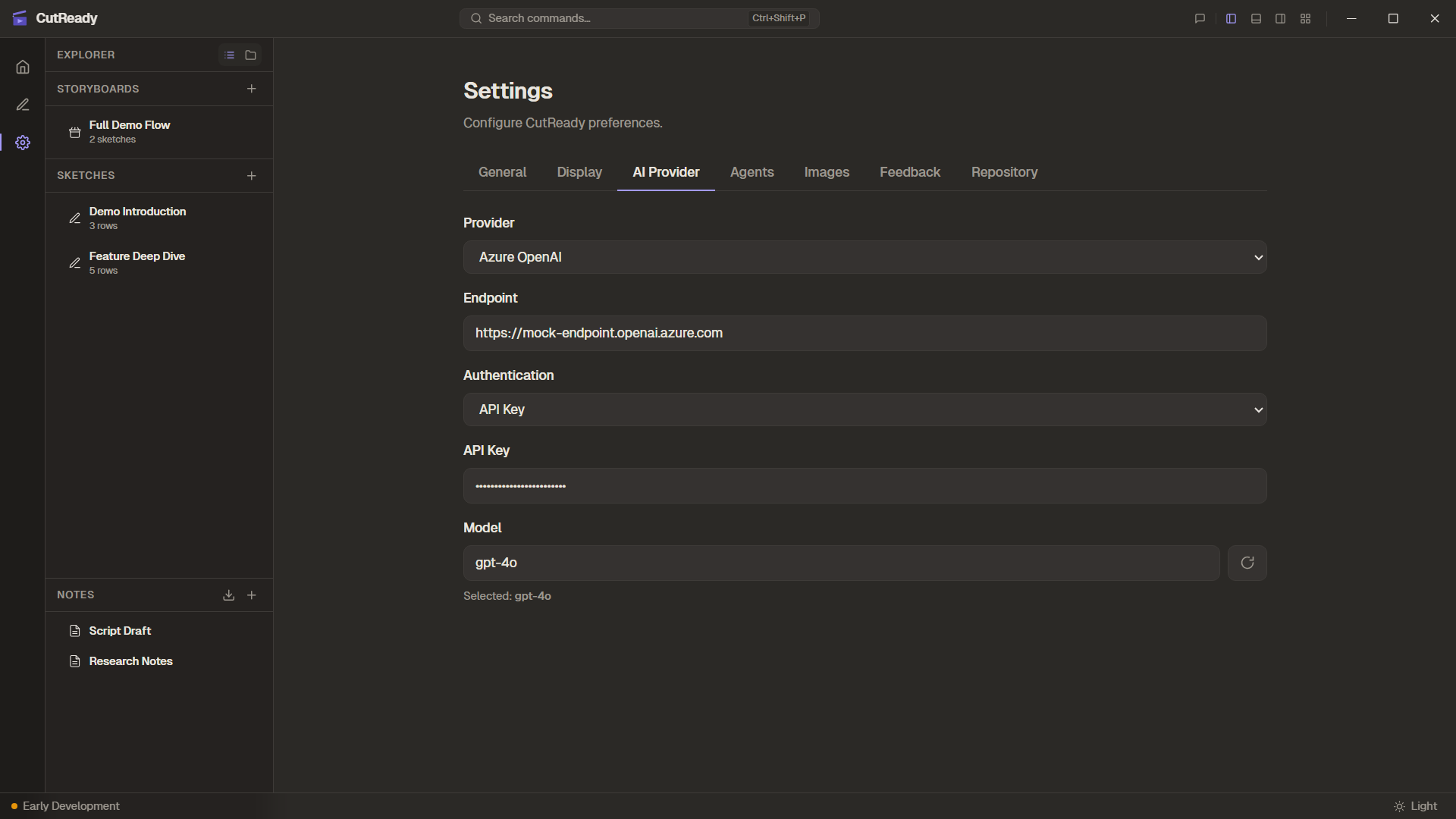
Choose between supported LLM providers:
| Provider | Auth Method | Configuration |
|---|---|---|
| Microsoft Foundry | API key or Azure OAuth | Foundry project endpoint, model |
| Azure OpenAI | API key or Azure OAuth | Endpoint, Tenant ID, Client ID, model |
| OpenAI | API key | API key, model |
| Anthropic | API key | API key, model |
Microsoft Foundry Setup
Section titled “Microsoft Foundry Setup”For Microsoft AI Foundry (recommended for Azure users):
- API Endpoint — Your Foundry project URL (e.g.,
https://your-hub.services.ai.azure.com/api/projects/your-project) - Authentication — API Key or Azure OAuth sign-in
- Azure OAuth permissions — Shared-project users need Foundry User on the Foundry project and Cognitive Services OpenAI User on the backing Azure AI Services/OpenAI resource
- Model — Choose from deployed models (use Refresh to load them)
- Capability tags — When available, fetched models show context window, vision support, and Responses API support
- Internet Search — Enable the public web search tool for agents when you want current external information
Azure OpenAI Setup
Section titled “Azure OpenAI Setup”For Azure OpenAI:
- API Endpoint — Your Azure OpenAI resource URL (e.g.,
https://your-resource.openai.azure.com/) - Authentication — Choose between:
- OAuth — Click “Sign in with Azure” to start the browser-based Azure AD flow. Requires Tenant ID and Client ID.
- API Key — Paste your Azure OpenAI API key directly
- Tenant ID — Your Azure AD tenant identifier (for OAuth)
- Client ID — Your Azure AD application client ID (for OAuth)
- Azure RBAC roles — For shared Azure OpenAI resources, OAuth users need Cognitive Services OpenAI User on the resource
- Model — The deployed model name (e.g.,
gpt-4o,gpt-4o-mini)
OpenAI Setup
Section titled “OpenAI Setup”For direct OpenAI access:
- API Key — Your OpenAI API key
- Model — The model to use (e.g.,
gpt-4o,gpt-4o-mini)
Anthropic Setup
Section titled “Anthropic Setup”For Anthropic Claude models:
- API Key — Your Anthropic API key
- Model — The model to use (e.g.,
claude-3-5-sonnet-latest)
Built-in Agents
Section titled “Built-in Agents”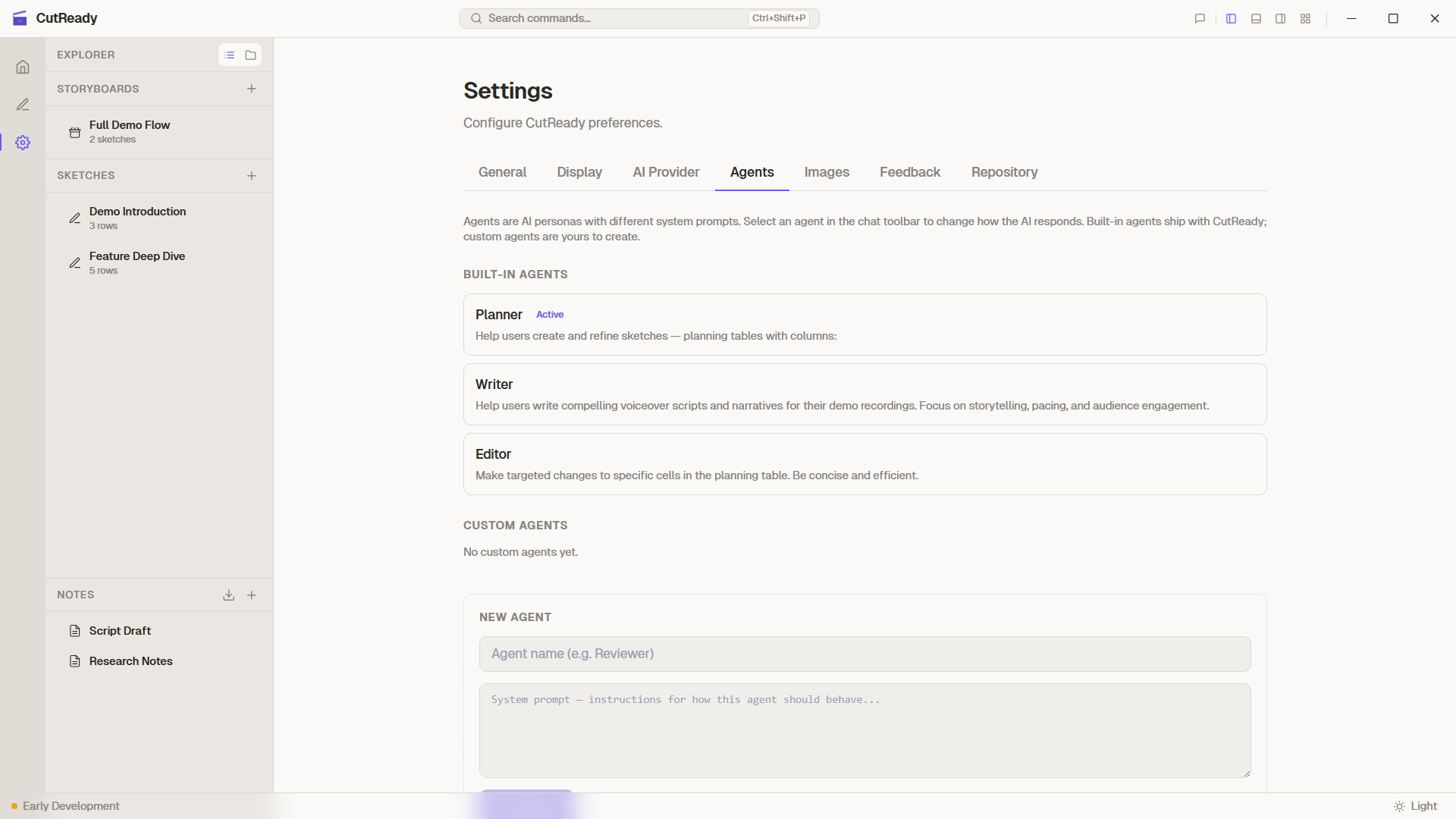
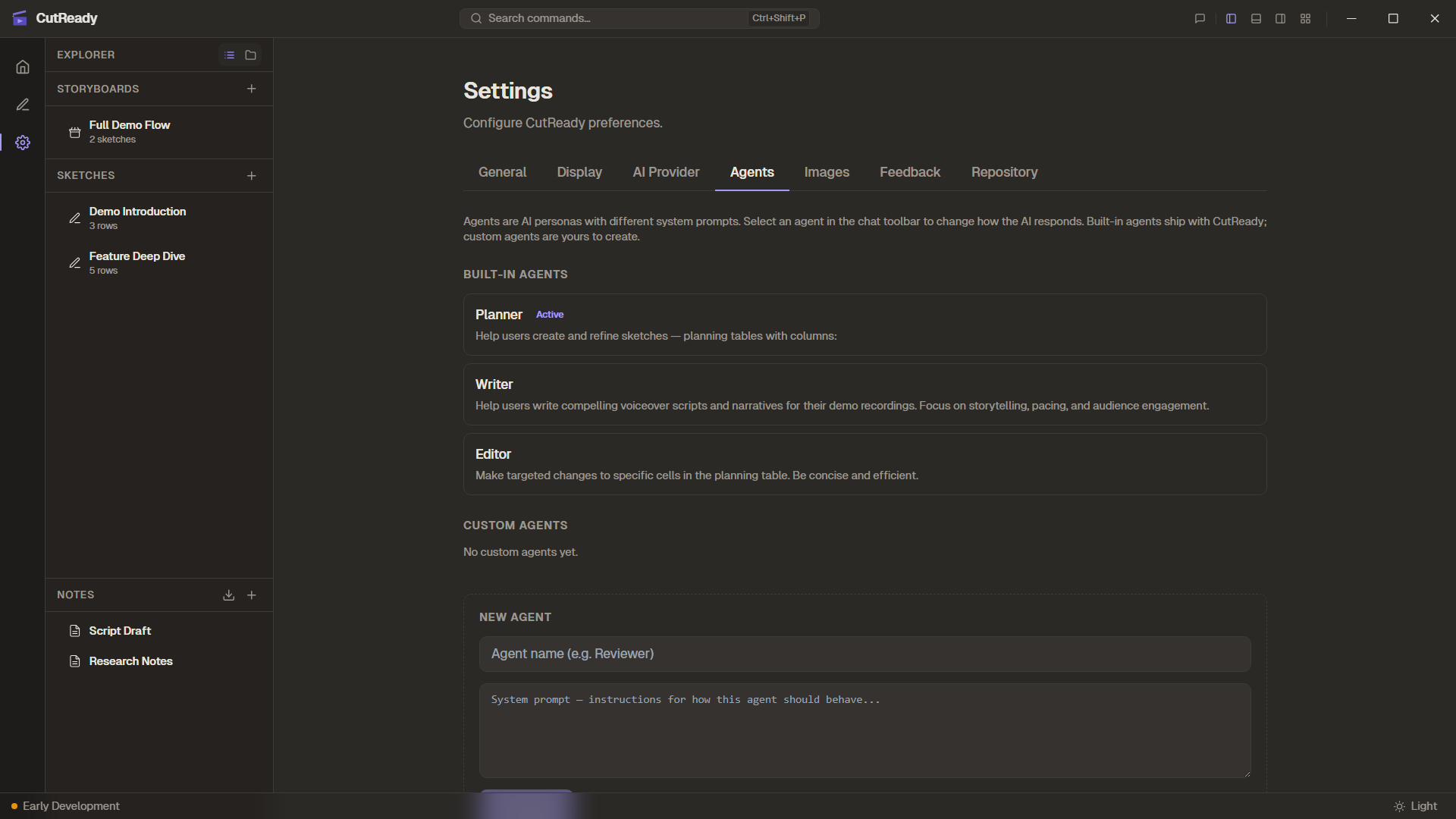
CutReady ships with four built-in agents that are read-only — you can view their system prompts but not modify them:
| Agent | Purpose |
|---|---|
| Planner | Demo planning, structure, and flow |
| Writer | Narrative refinement and voiceover text |
| Editor | Precise, surgical edits to specific content |
| Designer | Elucim visual generation for sketch rows |
Custom Agents
Section titled “Custom Agents”Create your own agents with custom system prompts for specialized tasks:
- Add — Click “Add Agent” and provide a name and system prompt
- Edit — Click any custom agent to modify its name or prompt
- Delete — Remove custom agents you no longer need
Custom agents appear alongside built-in agents in the chat panel’s agent selector. They use the same model and tools as built-in agents.
Example Use Cases
Section titled “Example Use Cases”- Brand Voice — An agent that writes in your company’s style guidelines
- Technical Writer — An agent focused on precision and technical accuracy
- Concise Editor — An agent that ruthlessly cuts unnecessary words
Feedback History
Section titled “Feedback History”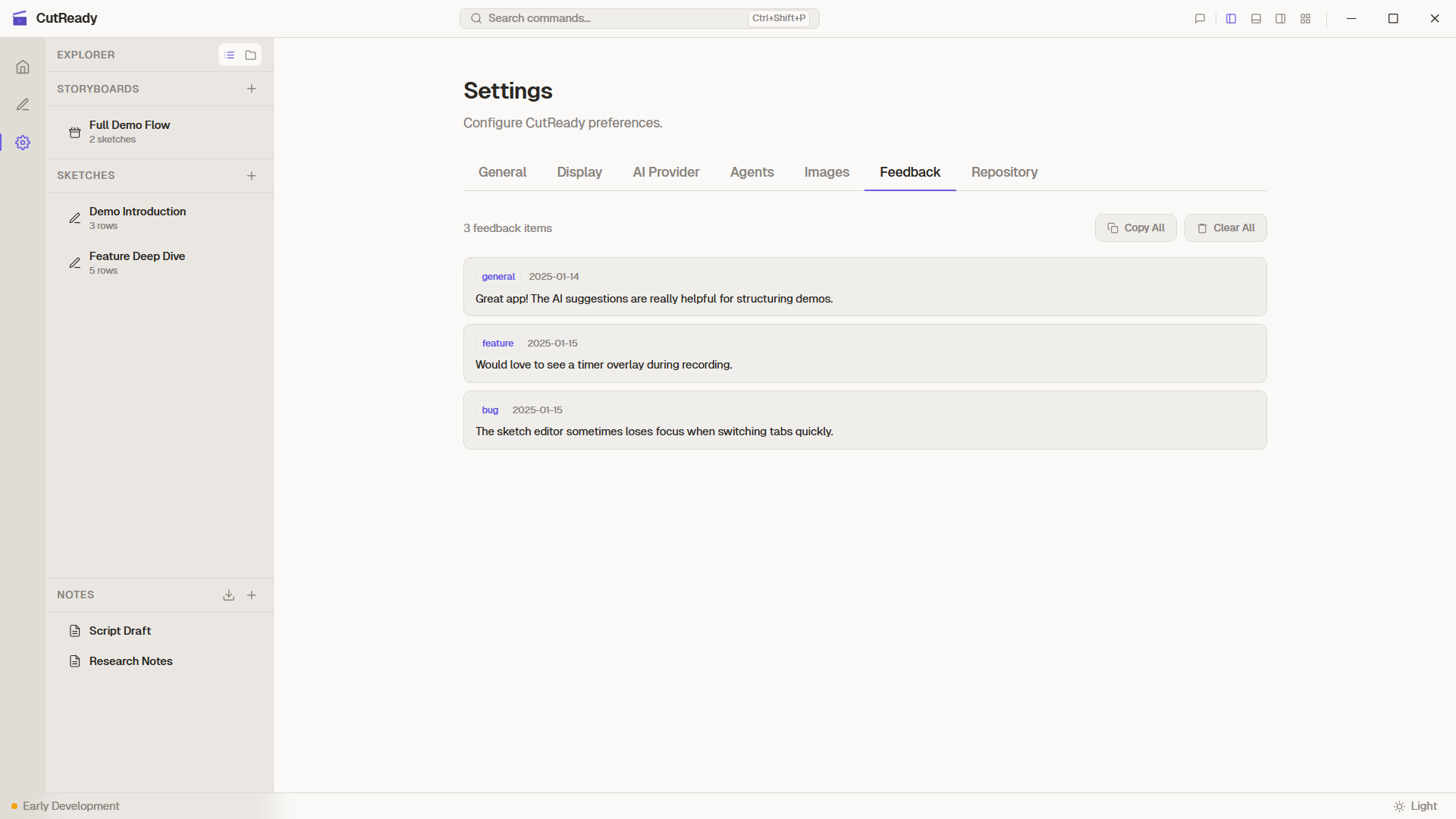
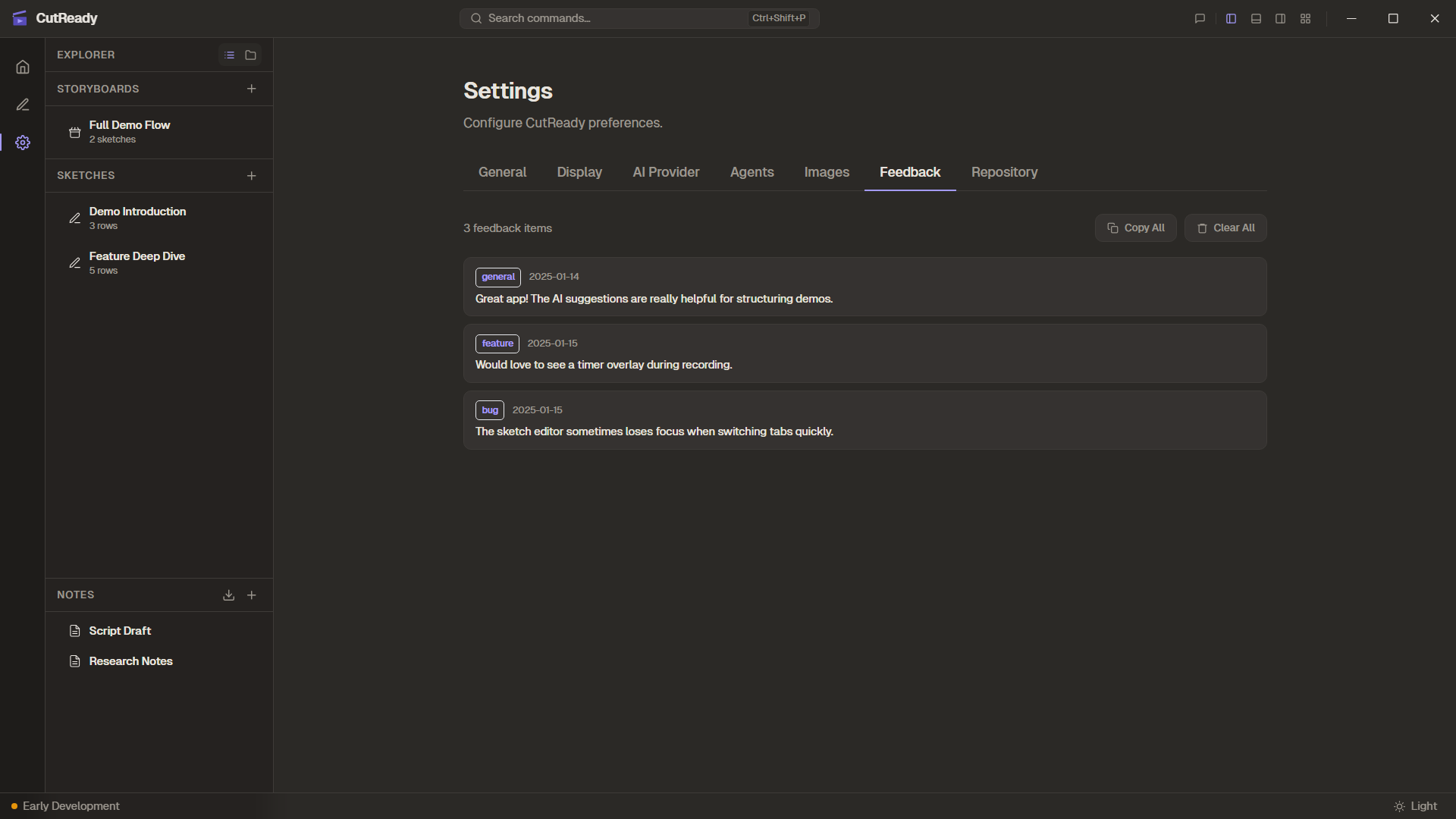
View all feedback you’ve submitted through the title bar popover or via the
AI assistant’s save_feedback tool. Entries are shown newest-first with:
- Category badge — General, Bug, Feature, or Design
- Date — When the feedback was submitted
- Debug log indicator — Shows if a debug log snapshot was attached
Actions
Section titled “Actions”Each feedback entry has hover buttons for:
- Copy — Copy the feedback text to clipboard
- Create GitHub Issue — Uses the AI to format your feedback into a well-structured GitHub issue, then opens your browser to the pre-filled issue creation page. Includes app version and optional debug log in a collapsible section.
You can also Copy All to get all feedback entries at once, or Clear All to reset your feedback history.
Software Updates
Section titled “Software Updates”Check for and install CutReady updates without leaving the app:
- Installed version — Shows the currently running version
- Check for Updates — Queries for the latest release (shows a spinner while checking)
- Up to date ✓ — Shown when no update is available
- When an update is available, shows the new version number, full release notes (rendered as markdown), and a Download & Install button with a progress indicator
- View full changelog on GitHub — Link to the complete release history
Updates are delivered via the built-in Tauri updater. Install applies the update and prompts you to restart CutReady.
Feature Flags
Section titled “Feature Flags”Experimental settings expose work-in-progress capabilities before they become default product flows:
- Recording — Shows recording controls for browser action traces and screen/camera/audio takes. The feature is disabled by default while the replay and export pipeline is still being built.
Workspace Settings
Section titled “Workspace Settings”Open workspace settings from the monitor icon (🖥️) in the sidebar navigation. Workspace settings apply to the current workspace only and can override global defaults for repository, memory, display, theme, AI provider, and agent settings.
Remote URL
Section titled “Remote URL”Configure the GitHub remote for syncing your workspace. Enter the HTTPS or SSH URL and click Test Connection to verify. See Workspace Remote for full details.
Workspace Memory
Section titled “Workspace Memory”Workspace-specific context that persists across AI sessions. Memory items provide background knowledge to the AI assistant so it can give more relevant suggestions for this workspace.
Override global display preferences (text size, row density, color palette, and editor width) for this workspace.
Override global theme preferences for this workspace.
Override the global AI provider settings for this workspace. Useful when different workspaces need different models or endpoints.
Override the global agent configuration for this workspace. Add workspace-specific custom agents or change the default agent selection.
Encrypted Secret Storage
Section titled “Encrypted Secret Storage”CutReady stores all sensitive credentials — API keys, OAuth tokens, and personal
access tokens — in an IOTA Stronghold encrypted vault. The vault file
(vault.hold) lives in the app data directory, not in your workspace.
- Automatic migration: On first launch after upgrading, any plaintext
credentials in
settings.jsonare migrated to the encrypted vault - Transparent: No password prompt — encryption is handled automatically
- Secure by default: Credentials never touch the filesystem in plaintext
Settings Persistence
Section titled “Settings Persistence”Global settings are persisted in Tauri’s app data directory. Workspace settings are stored within the workspace. All settings apply immediately when changed — no restart required.