Merging & Conflicts
When you have multiple timelines, you’ll eventually want to merge them — combining changes from one timeline into another. CutReady handles this with a three-way merge engine that understands your project’s file types.
Starting a Merge
Section titled “Starting a Merge”- Open the timeline selector dropdown in the Snapshots panel
- Hover over the timeline you want to merge
- Click Merge — this combines the hovered timeline into your active timeline
Clean Merges
Section titled “Clean Merges”If the two timelines changed different files — or different parts of the same file — the merge completes automatically:
- A success toast appears: “Combined Experiment into Main — 3 files merged”
- The merged snapshot appears at the top of your graph
- The source timeline can optionally be kept or deleted
Conflict Resolution
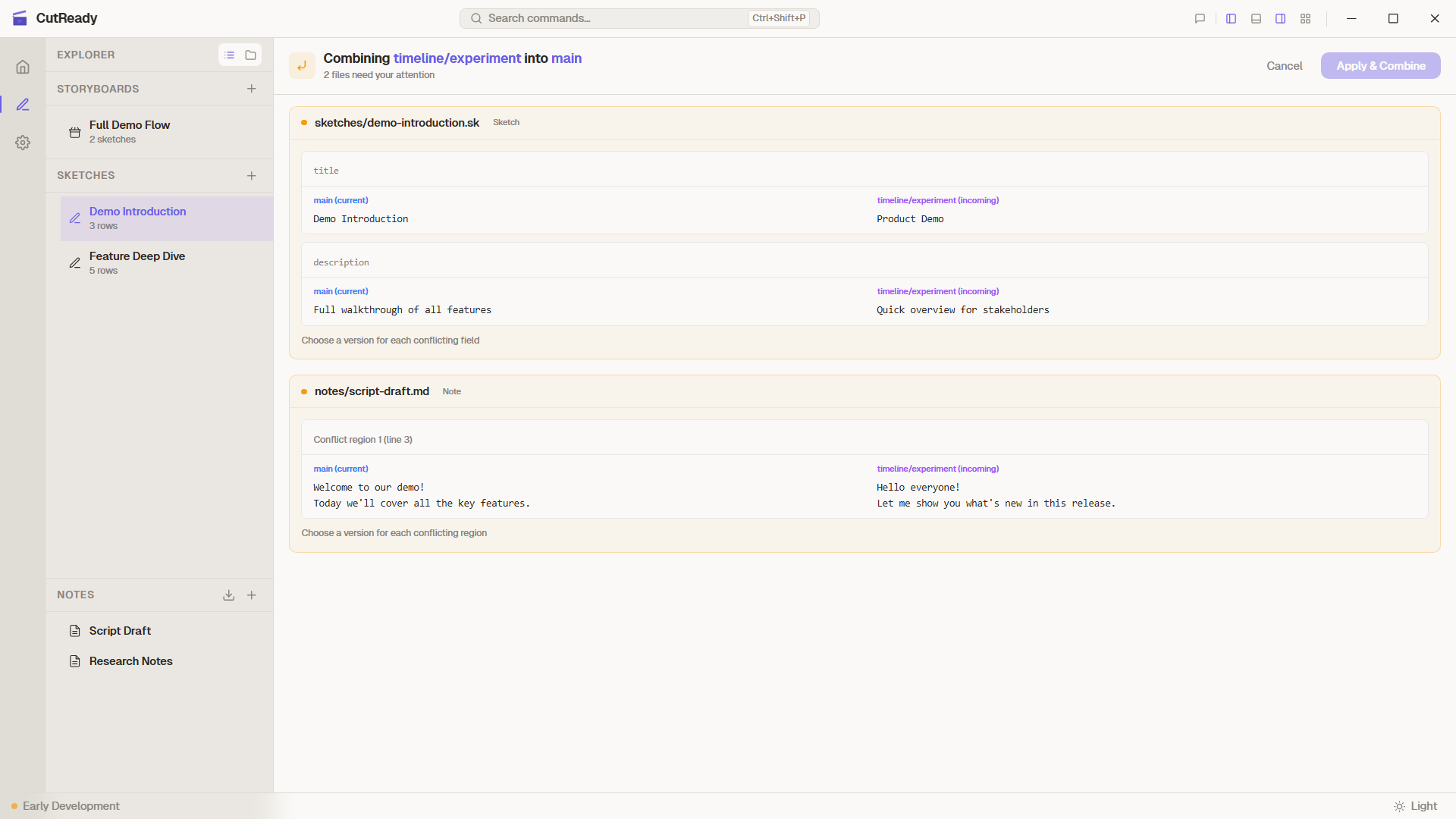
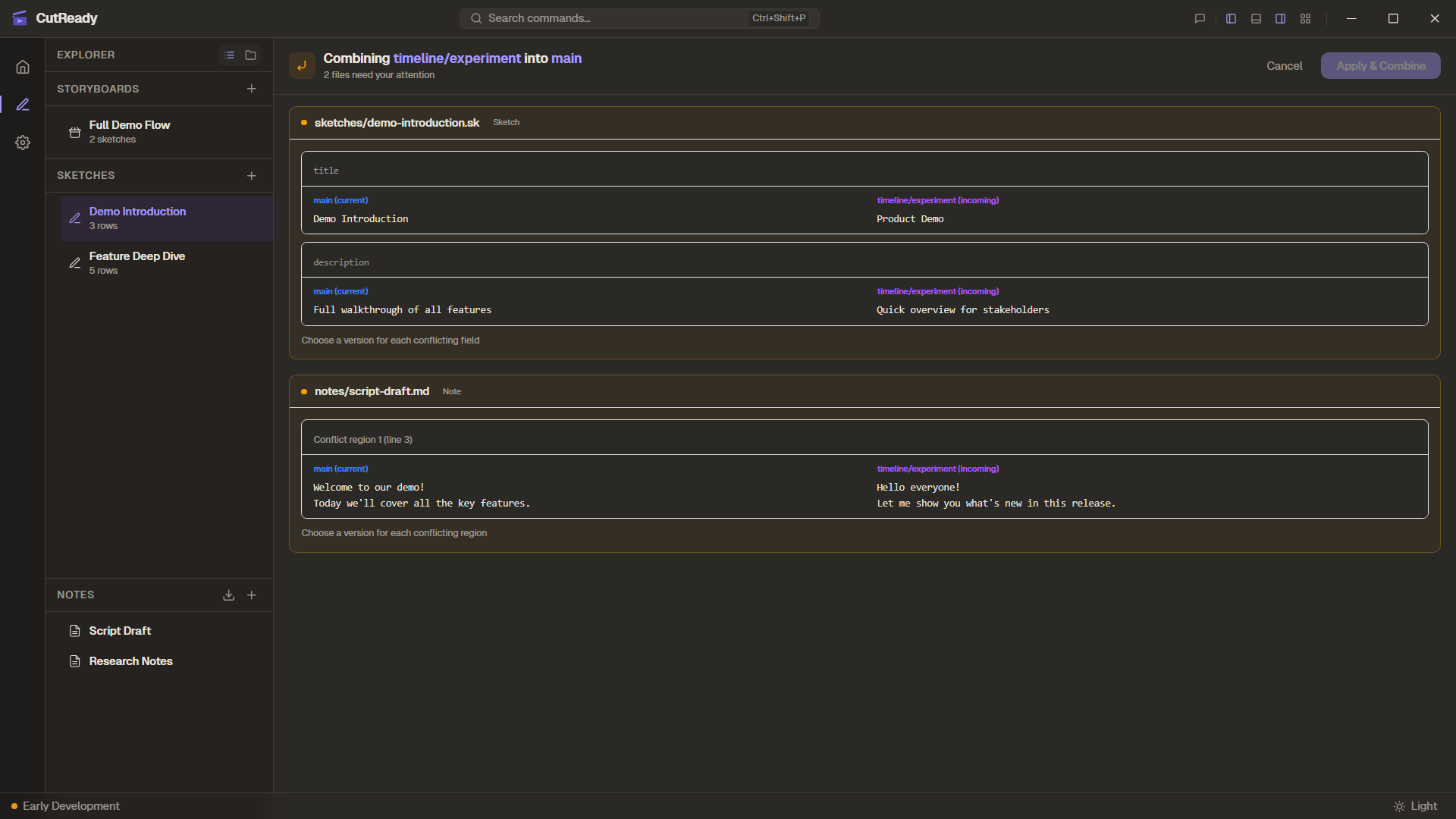
Section titled “Conflict Resolution”When both timelines changed the same fields in the same file, CutReady opens the Merge Conflict Panel — a dedicated UI for resolving each conflict.
How Conflicts Work
Section titled “How Conflicts Work”CutReady performs a three-way merge using the common ancestor of both timelines. This means it can automatically resolve most changes — only truly overlapping edits require your input.
For sketch files (.sk): Conflicts are detected at the field level. If both timelines changed the title of the same sketch, you’ll see that specific field as a conflict. Other fields that only one timeline changed are auto-resolved.
For note files (.md): Conflicts are detected at the line level, similar to traditional code merge. Overlapping paragraphs are highlighted with both versions shown.
For storyboard files (.sb): Conflicts can occur on metadata fields (title, description) or on the items array when both timelines reordered the sketch sequence.
Resolving Conflicts
Section titled “Resolving Conflicts”For each conflicting file, you have three choices:
| Option | What it does |
|---|---|
| Keep Main | Use the version from your active timeline |
| Keep Theirs | Use the version from the incoming timeline |
| Edit | Open a custom editor to write your own resolution |
The conflict panel shows each file with its conflicting fields. Non-conflicting fields are dimmed and labeled “auto-resolved” — you only need to decide on the overlapping changes.
Completing the Merge
Section titled “Completing the Merge”Once all conflicts are resolved, click Apply & Combine:
- A merge commit is created with two parents (one from each timeline)
- The merged result appears as the latest snapshot on your active timeline
- The source timeline remains available unless you choose to delete it
Aborting a Merge
Section titled “Aborting a Merge”Click Cancel at any time during conflict resolution to abort. This restores your project to the exact state before the merge began — no changes are made.
Merge from Remote
Section titled “Merge from Remote”When pulling changes from a remote repository, CutReady uses the same merge engine. If remote changes conflict with your local work, the Merge Conflict Panel opens with “remote” as the incoming source. See Remote Sync for details.