Workspaces & Projects
Every demo in CutReady lives inside a project, which is part of a
workspace. A workspace is a portable folder that can contain one or more
projects. Each project holds sketches, storyboards, notes, screenshots, and
visuals; Draftline stores version history in the workspace’s .git/ directory.
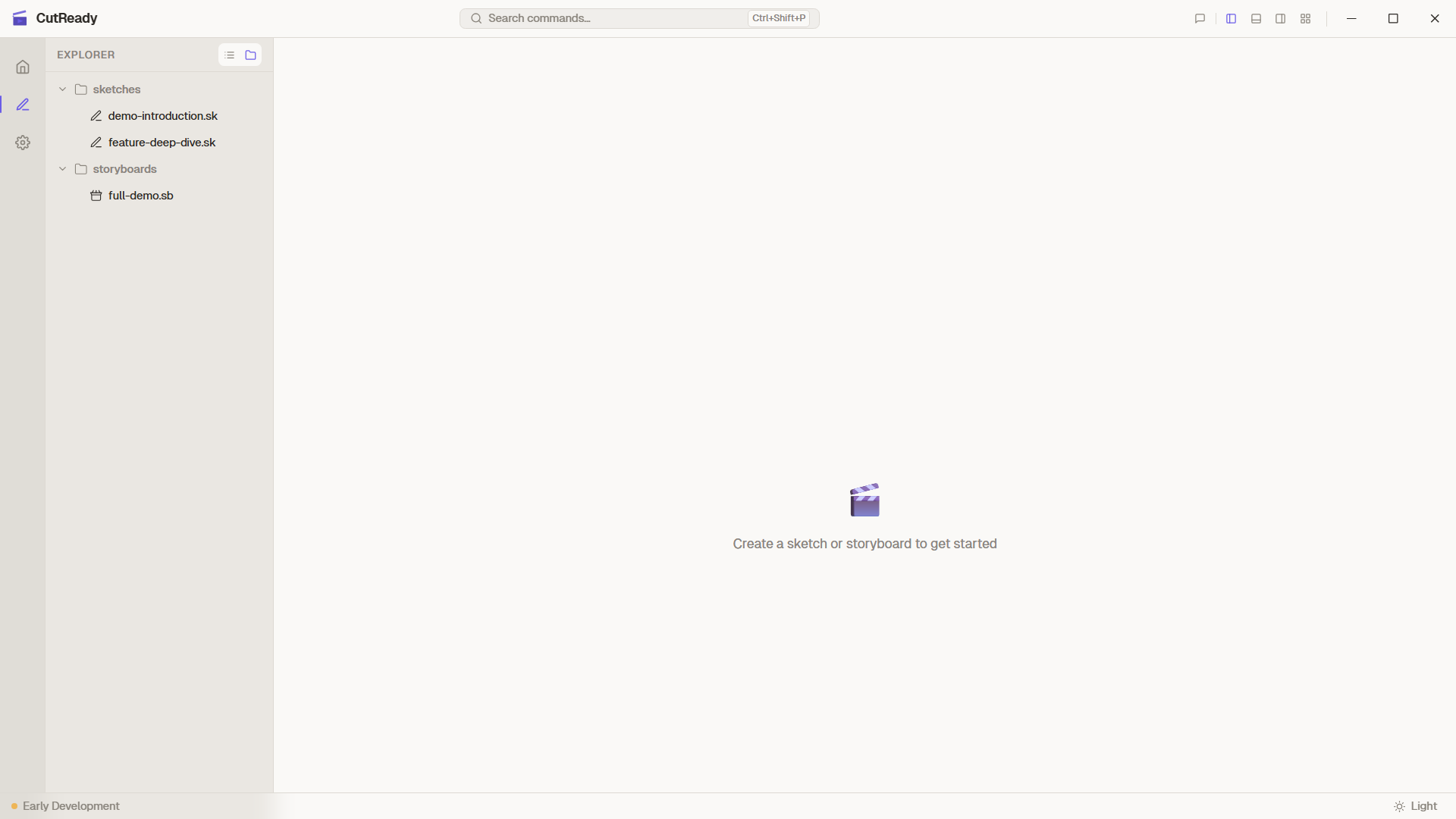
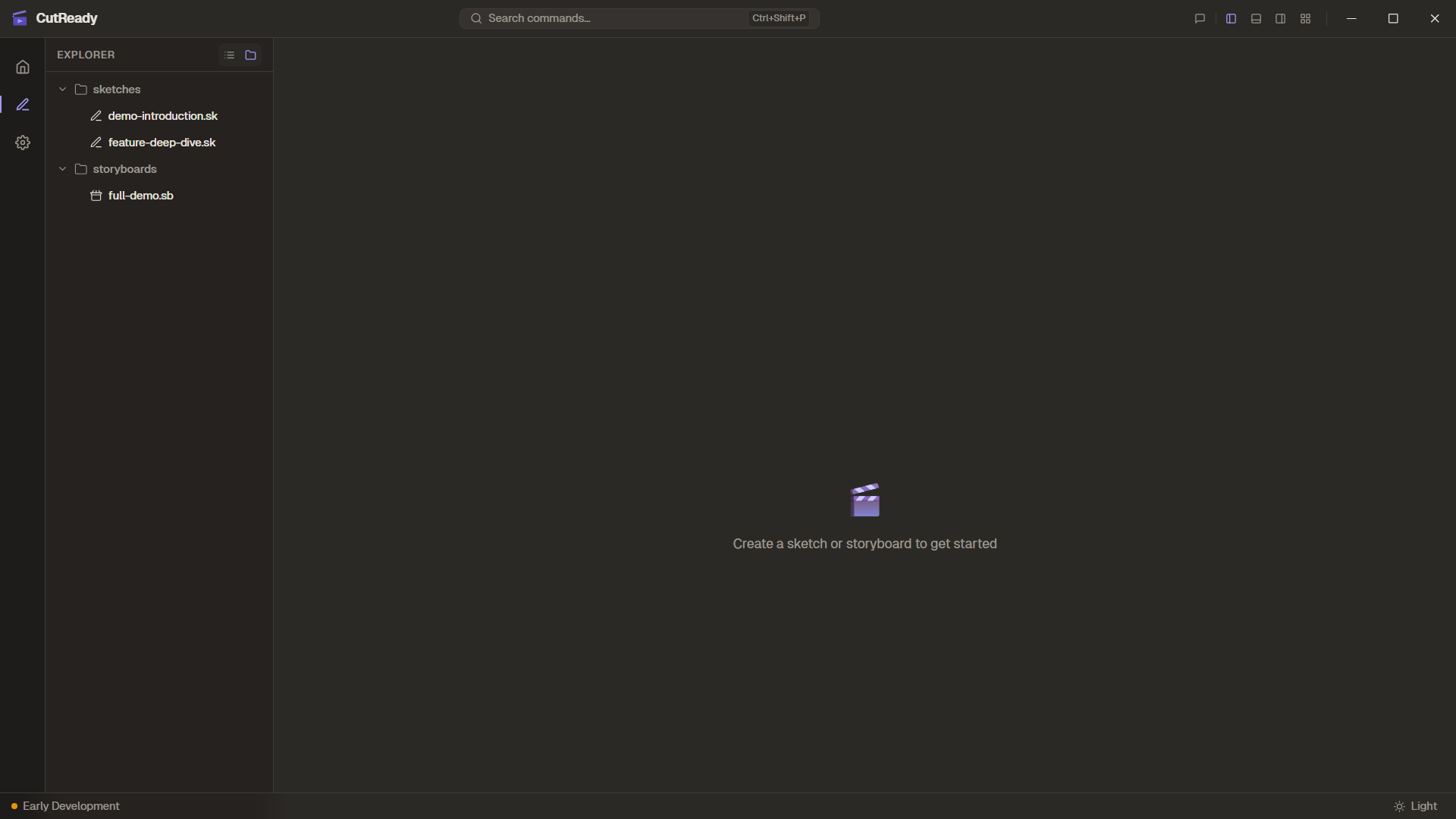
The documentation screenshots are captured from the portable example workspace
in docs/examples/cutready-demo-project/. It includes three sketches, one
storyboard, notes, visuals, and screenshot assets without a nested .git
directory, so it is safe to copy as a starting point for demos.
Terminology
Section titled “Terminology”| Term | Meaning |
|---|---|
| Workspace | A portable folder. This is what you open or clone in CutReady. |
| Project | A unit of work within a workspace. Contains its own sketches, storyboards, and notes. |
A workspace can operate in single-project mode (the default when you open an empty git repo) or multi-project mode (when you add additional projects).
Creating a New Workspace
Section titled “Creating a New Workspace”-
Open CutReady — You’ll see the Home screen with your recent workspaces.
-
Click “New Workspace” — A system folder picker opens. Choose or create a folder where CutReady will initialize a workspace.
-
Name your project — Enter a descriptive title like “Product Demo Q1”. CutReady initializes the folder with Draftline version history and local CutReady state.
Opening an Existing Workspace
Section titled “Opening an Existing Workspace”Use “Open Workspace” on the Home screen to browse to an existing CutReady workspace folder. CutReady scans for sketches, storyboards, notes, and multi-project manifests, then initializes Draftline if needed.
Your most recently used workspaces appear in the Recent Workspaces list on the Home screen for quick access.
Multi-Project Workspaces
Section titled “Multi-Project Workspaces”A single workspace can contain multiple projects. This is useful for organizing related demos, different versions of a presentation, or team collaboration.
Adding a Project
Section titled “Adding a Project”Use the ProjectSwitcher in the sidebar to create a new project within the current workspace. Each project gets its own subdirectory with an independent set of sketches, storyboards, and notes.
Switching Projects
Section titled “Switching Projects”The ProjectSwitcher dropdown in the sidebar shows all projects in the workspace. Click a project name to switch to it. Your current project state is preserved and restored when you switch back.
Renaming a Project
Section titled “Renaming a Project”Click the pencil icon (✏️) next to the project name in the ProjectSwitcher to rename it.
Moving and Copying Files Between Projects
Section titled “Moving and Copying Files Between Projects”Right-click any sketch, storyboard, or note in the sidebar to see Move to and Copy to submenus listing the other projects in the workspace. Referenced screenshots and visuals are transferred automatically. If a file with the same name already exists in the destination project, a rename dialog appears.
Migration from Single-Project
Section titled “Migration from Single-Project”When you add a second project to a single-project workspace, CutReady automatically runs a migration flow:
- Existing files are moved into a project subdirectory
- A
.cutready/projects.jsonmanifest is created to track all projects - The workspace is now in multi-project mode
This is seamless — your existing files and version history are preserved.
Workspace Folder Structure
Section titled “Workspace Folder Structure”Single-Project (default)
Section titled “Single-Project (default)”my-workspace/├── .cutready/│ ├── screenshots/ ← Captured and pasted images│ ├── visuals/ ← Elucim DSL visual files│ └── settings.json ← Workspace settings overrides├── .git/ ← Draftline version history + local CutReady state│ └── cutready/ ← Local UI state such as ordering and open tabs├── intro.sk ← Sketch file├── demo-flow.sb ← Storyboard file└── research-notes.md ← Markdown noteMulti-Project
Section titled “Multi-Project”my-workspace/├── .cutready/│ └── projects.json ← Multi-project manifest├── .git/ ← Shared version history├── project-alpha/│ ├── .cutready/│ │ ├── screenshots/│ │ └── visuals/│ ├── intro.sk│ └── demo-flow.sb└── project-beta/ ├── .cutready/ │ ├── screenshots/ │ └── visuals/ ├── overview.sk └── notes.mdFile Types
Section titled “File Types”| Extension | Type | Description |
|---|---|---|
.sk | Sketch | Structured planning table with narrative, actions, and screenshots |
.sb | Storyboard | Ordered sequence of sketch references |
.md | Note | Free-form markdown document |
.png / .jpg | Screenshot | Reference images under .cutready/screenshots/ |
.json | Visual | Elucim DSL visuals under .cutready/visuals/ |
Explorer Ordering (.git/cutready/order.json)
Section titled “Explorer Ordering (.git/cutready/order.json)”The .git/cutready/order.json file persists the order of documents in the
Explorer. When you drag-and-drop documents to rearrange them, CutReady writes
the new order to this local UI-state file so it is preserved across sessions
without adding noise to snapshots. Older workspaces may still contain
.cutready-order.json; CutReady migrates it automatically.
Version History (.git/)
Section titled “Version History (.git/)”Each workspace contains an embedded .git/ directory managed through
Draftline. This is completely independent of any source code repositories —
it’s used solely for CutReady content version tracking and collaboration.
Screenshots
Section titled “Screenshots”Captured and pasted screenshots are stored in .cutready/screenshots/ inside
the project. When you use screen capture from a sketch row, the image file is
saved there and referenced by relative path from the sketch.