UI & Navigation
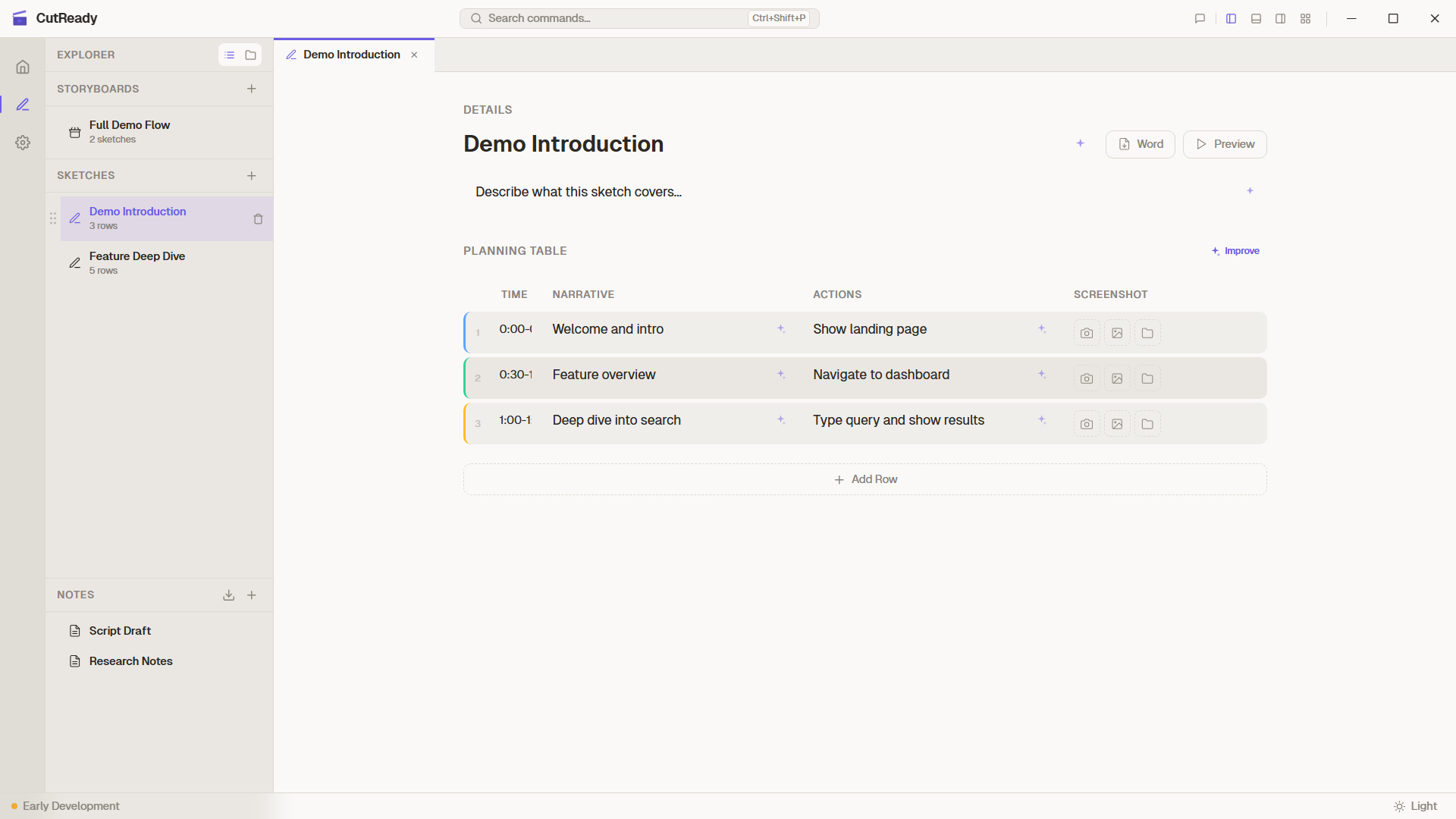
CutReady uses a modern, VS Code-inspired interface with a sidebar, Explorer tree view, tabbed editors, resizable panels, and a command palette.
Layout
Section titled “Layout”┌────────────────────────────────────────────────────────────┐│ Title Bar (workspace / project breadcrumb, panel toggles) │├────────┬──────────────────────────────────┬────────────────┤│ Side- │ Tab Bar (open documents) │ Chat Panel ││ bar ├──────────────────────────────────┤ (AI chat + ││ (nav + │ Main Content │ Activity) ││ gear) │ (Sketch / Record / Script / │ ││ │ Settings) │ ││ ├──────────────────────────────────┤ ││ │ Output Panel │ ││ │ (Activity | Debug | Terminal) │ │└────────┴──────────────────────────────────┴────────────────┘Sidebar
Section titled “Sidebar”The sidebar has navigation icons at the top and a gear icon pinned to the bottom:
| View | Description |
|---|---|
| Home | Workspace selection and creation |
| Project | Combined document list for sketches, storyboards, and notes |
| Storyboards | Storyboard-focused document list |
| Sketches | Sketch-focused document list |
| Notes | Notes-focused document list |
| Assets | Screenshots and visuals, including orphan detection |
| Explorer | Tree view of project files |
| Workspace | Workspace-level settings |
| Feedback | Feedback popover, pinned above Settings |
| Settings | Global preferences, pinned to the bottom |
The Explorer tree view shows all files in the current project — sketches
(.sk), storyboards (.sb), and notes (.md). The Explorer header includes
a unified Import button for importing files into the project.
- Toggle visibility:
Ctrl+B - Move sidebar: click the LayoutGrid button in the title bar, or right-click the sidebar and choose the move action
- The sidebar remembers its width across sessions
- Escape cancels any in-progress creation or rename action
Project Switcher
Section titled “Project Switcher”When a workspace contains multiple projects, a ProjectSwitcher dropdown appears in the sidebar. Click to switch between projects or create new ones. A pencil icon next to the project name allows renaming.
Command Palette
Section titled “Command Palette”Press Ctrl+Shift+P to open the command palette — a searchable list of
all available commands. Start typing to filter.
Title Bar
Section titled “Title Bar”CutReady uses a frameless window with a custom title bar that includes:
- Workspace / project breadcrumb — Shows the current workspace and project path
- Window controls (minimize, maximize, close)
- Feedback button — chat-bubble icon to submit feedback with optional debug log
- LayoutGrid button — leftmost panel toggle; click to flip the sidebar between left and right
- Toggle buttons for sidebar, output panel, and chat panel
- Drag area for moving the window
Output Panel
Section titled “Output Panel”Toggle with `Ctrl+“ — a resizable bottom panel with three tabs:
- Activity — real-time log of AI operations, tool calls, and sparkle actions
- Debug — captures JavaScript console output and Rust backend log messages for diagnostics
- Terminal — opens a system terminal in the project directory (Windows Terminal or PowerShell on Windows, Terminal.app on macOS, gnome-terminal/konsole/xterm on Linux)
All tabs support export (download as .log file) and per-tab clear. You can also open a terminal from the sidebar by right-clicking any sketch, storyboard, or note and choosing Open in Terminal.
Feedback
Section titled “Feedback”CutReady has a built-in feedback system accessible from the title bar:
- Click the 💬 icon next to the panel toggles to open the feedback popover
- Choose a category: General, Bug, Feature, or Design
- Optionally toggle Include debug log to attach diagnostic information
- Feedback is persisted to the app data directory and viewable in Settings → Feedback
- From Settings, you can copy feedback or create a GitHub Issue — the issue body is formatted by AI with the app version and optional debug log
Keyboard Shortcuts
Section titled “Keyboard Shortcuts”| Shortcut | Action |
|---|---|
Ctrl+Shift+P | Open Command Palette |
Ctrl+B | Toggle Sidebar |
Ctrl+` | Toggle Output Panel |
Ctrl+S | Save Version |
Ctrl+Shift+I | Toggle Chat Panel |
Escape | Close overlays/modals, cancel creation/rename actions |
Chat Panel
Section titled “Chat Panel”The Chat Panel is a right-side panel for interacting with the AI assistant:
- Chat tab — Converse with built-in AI agents (Script Writer, Demo Planner, Sketch Improver) or custom agents
- Activity tab — View color-coded logs of AI operations (sparkle button calls, agent responses, errors)
- Toggle — Use the command palette or
Ctrl+Shift+I
The chat panel is independent of the main content area — you can keep it open while editing sketches, reviewing storyboards, or working on notes.
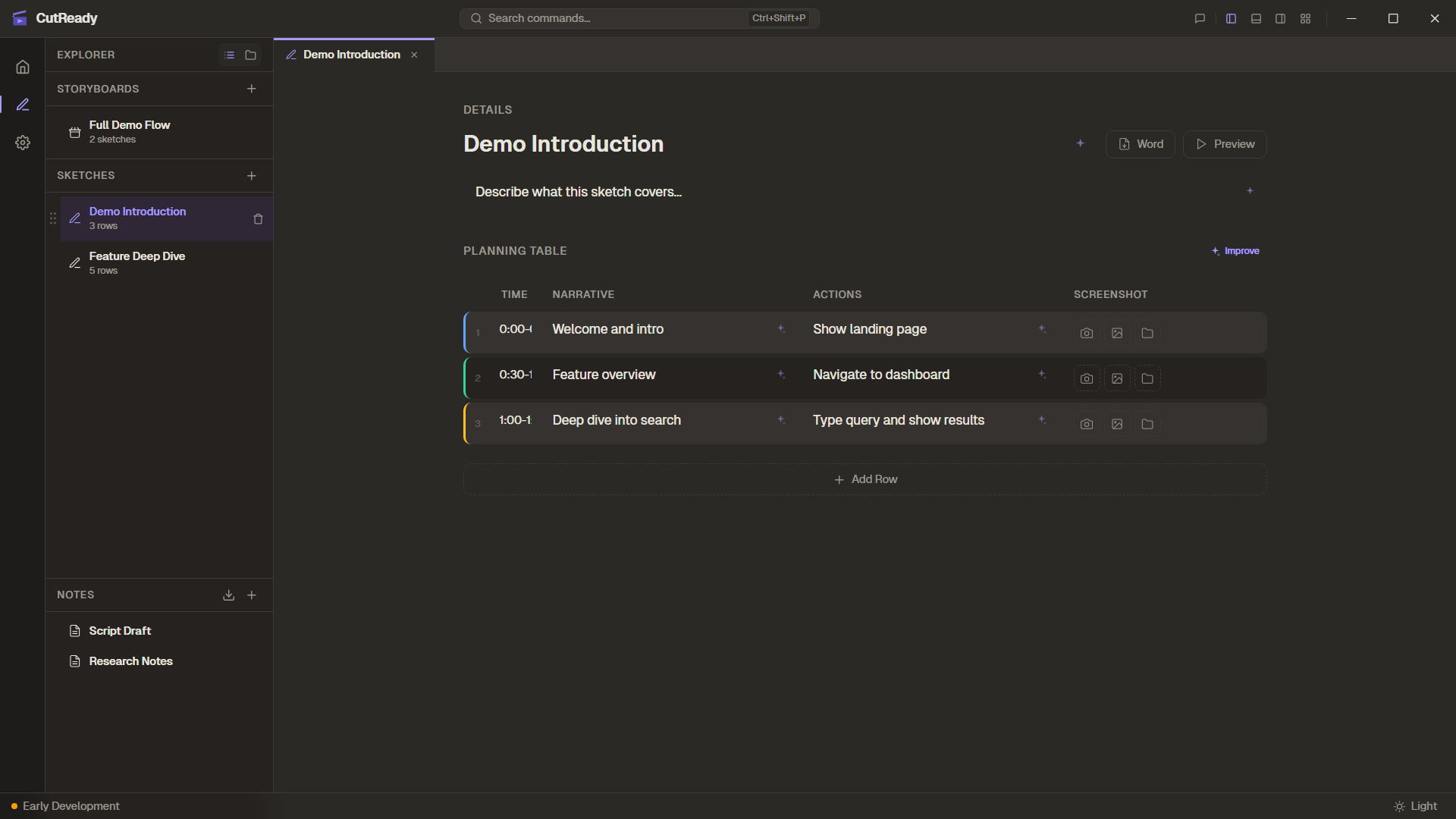
CutReady includes both light and dark themes, toggled from the status bar at the bottom of the window.