Storyboards
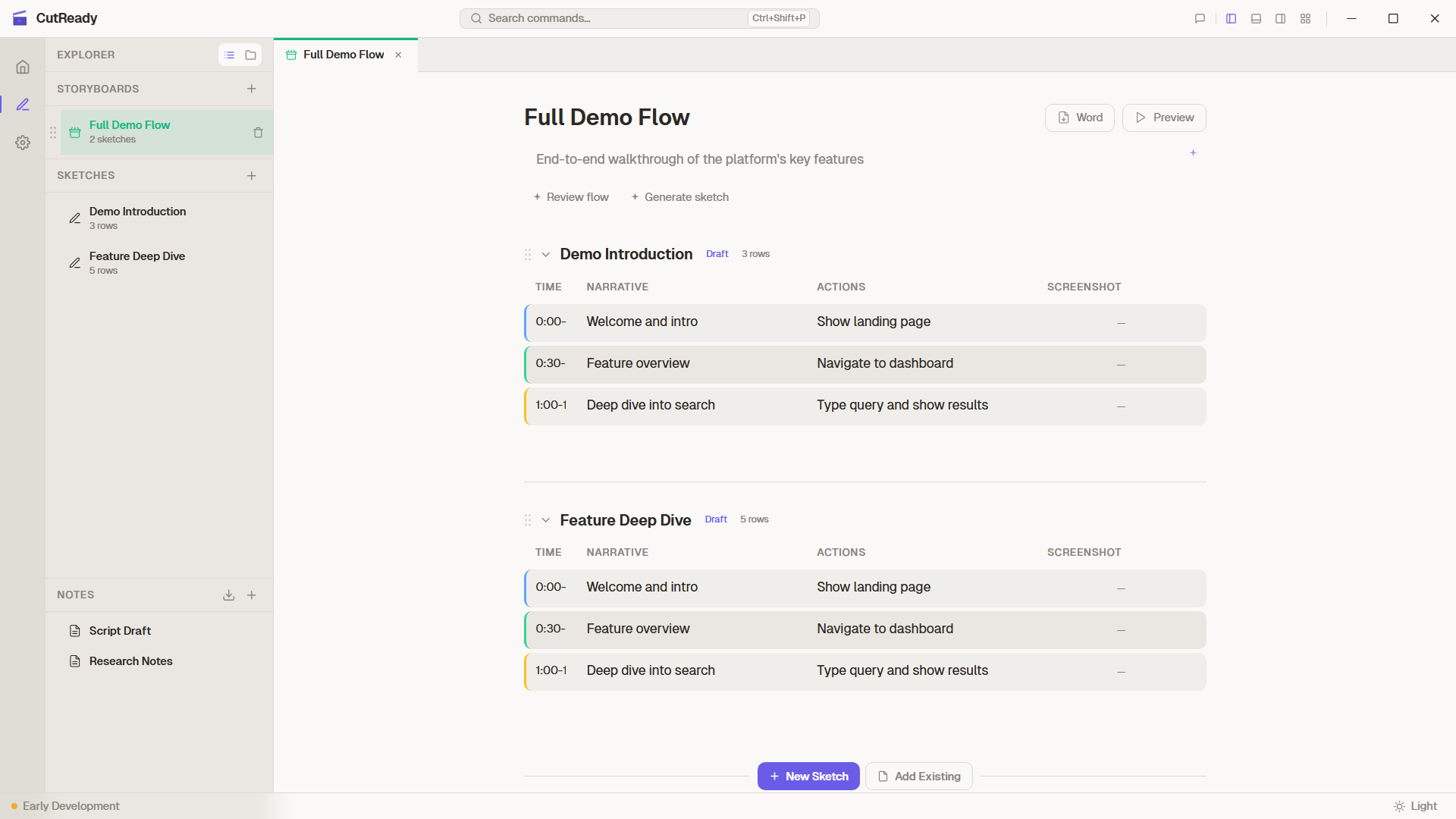
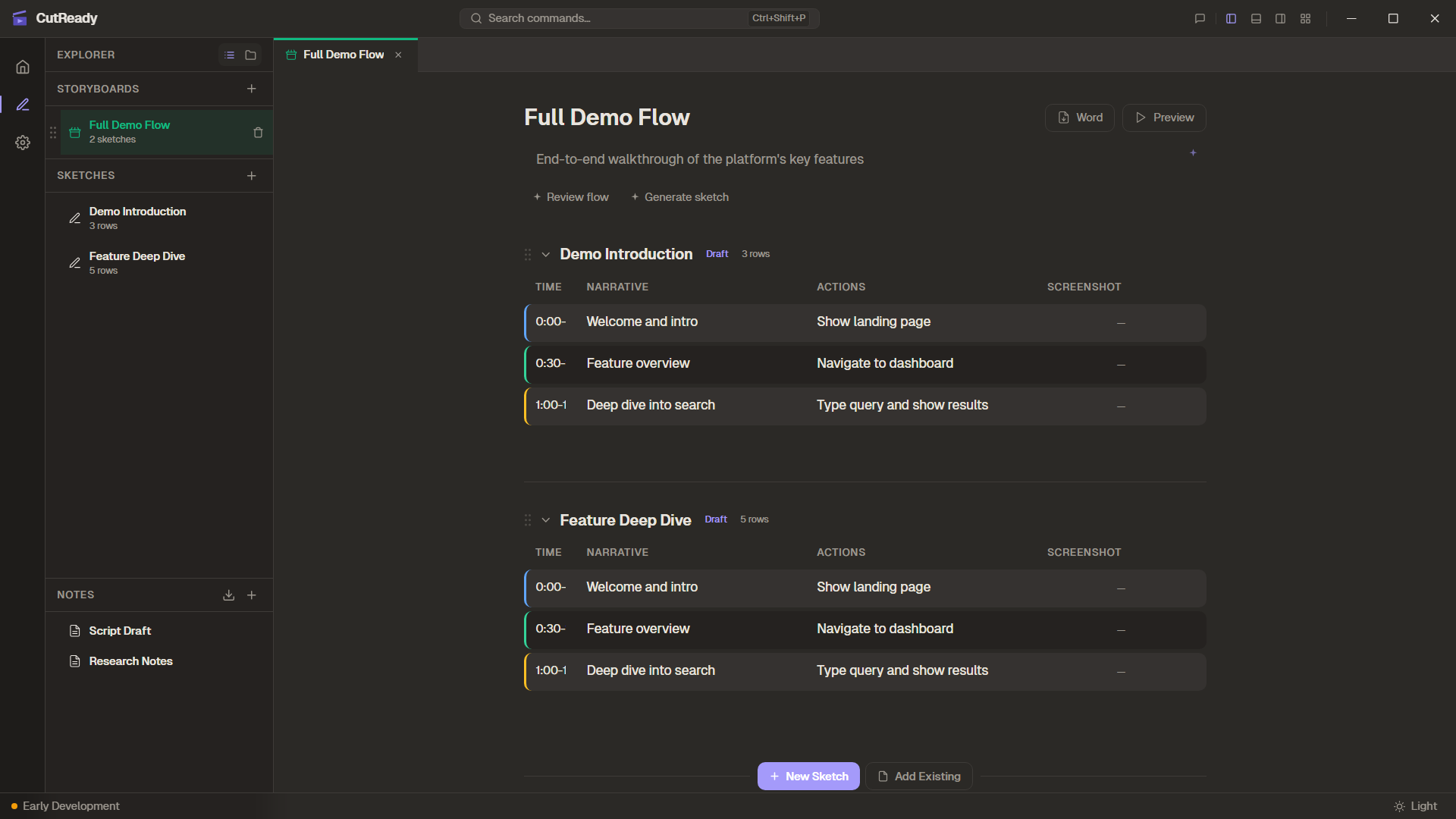
A storyboard is an ordered sequence of sketches that forms a complete demo flow. While a sketch is a single scene (one planning table with narrative, actions, and screenshots), a storyboard chains multiple sketches together into a cohesive presentation.
Sketches vs. Storyboards
Section titled “Sketches vs. Storyboards”Think of it like a movie:
| Sketch | Storyboard | |
|---|---|---|
| What it is | A single scene | A sequence of scenes |
| Contains | Title + planning table (time, narrative, actions, screenshots) | Title + ordered list of sketch references |
| File | .sk | .sb |
| Purpose | Plan one segment of a demo | Organize an entire demo flow |
| Editing | Full inline editing of table rows | References sketches — click through to edit |
A sketch is the building block. A storyboard is the assembly.
Storyboard Structure
Section titled “Storyboard Structure”A storyboard contains an ordered list of sketch references — pointers to
.sk files in your project.
Product Launch Demo (storyboard)├── intro.sk├── install-setup.sk├── first-run.sk├── dashboard-tour.sk├── api-walkthrough.sk└── closing-cta.skSketches can exist independently or be referenced by multiple storyboards. Deleting a sketch that’s referenced by a storyboard will show a warning.
Creating a Storyboard
Section titled “Creating a Storyboard”- Click the + button in the sidebar
- Select Storyboard
- Give it a title (e.g., “Q1 Product Demo”)
- The storyboard editor opens with an empty canvas
Description and Locking
Section titled “Description and Locking”Storyboards include a title, Markdown-friendly description, and optional whole-storyboard lock:
- Description — Use it for audience, setup, scope, or review notes for the full flow.
- Lock — Protects the storyboard from accidental manual or AI edits while still allowing you to browse and export it.
- Sparkle — The storyboard description can be improved with the same silent AI workflow used by sketches and notes.
Adding Sketches
Section titled “Adding Sketches”From the storyboard editor:
- ”+ New Sketch” — Creates a blank sketch and adds it to the storyboard
- ”+ Add Existing” — Opens a searchable picker to select from your sketch library
- Insert buttons appear between sketches for precise positioning
Organizing
Section titled “Organizing”- Drag and drop sketches to reorder them within the storyboard
- Collapse/expand individual sketches to show or hide their planning tables
- Each sketch card shows its title, lifecycle state badge, and row count
Preview Mode
Section titled “Preview Mode”Click Preview to launch a fullscreen presentation built from the storyboard:
- Select which monitor to present on (multi-monitor support)
- CutReady builds a slide deck: storyboard title → each sketch’s title + planning rows
- Navigate through the presentation to review the full demo flow
Export to Word
Section titled “Export to Word”Storyboards can be exported to .docx for review outside CutReady. The export
includes storyboard metadata, referenced sketch content, screenshots, and
rendered visuals where available. Use this when you need a shareable script or
stakeholder review document before producing video.
The Sidebar
Section titled “The Sidebar”The Storyboard List sidebar shows all project documents together:
| Document Type | Description |
|---|---|
| Sketch | Individual planning scenes |
| Storyboard | Sequences of sketches |
| Note | Free-form markdown documents |
Sidebar features:
- Drag and drop to reorder the list
- Search to filter by name
- File tree view as an alternate navigation mode
- Context menu (right-click) for rename, delete, and other actions
- Move to / Copy to — right-click any file to move or copy it to another project in the same workspace; referenced screenshots and visuals are transferred automatically. If a file with the same name already exists in the destination, a rename dialog appears.
- Open in Terminal — right-click any file to open a terminal in the project directory
- Order is persisted in
.git/cutready/order.jsonwith legacy fallback from.cutready-order.json
Tabbed Editing
Section titled “Tabbed Editing”Opening any document adds it as a tab. You can have multiple tabs open:
- Document name and type icon
- Dirty/unsaved state indicator (dot)
- Close button on each tab