Version History & Timelines
CutReady includes a full version history system backed by Git. Every save creates a snapshot that you can browse, compare, and restore — and you can branch your work into multiple timelines to experiment freely.
Snapshots
Section titled “Snapshots”A snapshot is a saved version of your entire project — all sketches, storyboards, and notes. Think of it as a checkpoint you can always return to.
Saving a Snapshot
Section titled “Saving a Snapshot”- Press Ctrl+S for a quick save with an auto-generated name
- Press Ctrl+Shift+S to save with a custom label
- Click the Save button in the Snapshots panel header
Each save records the exact state of every file in your project.
Navigating History
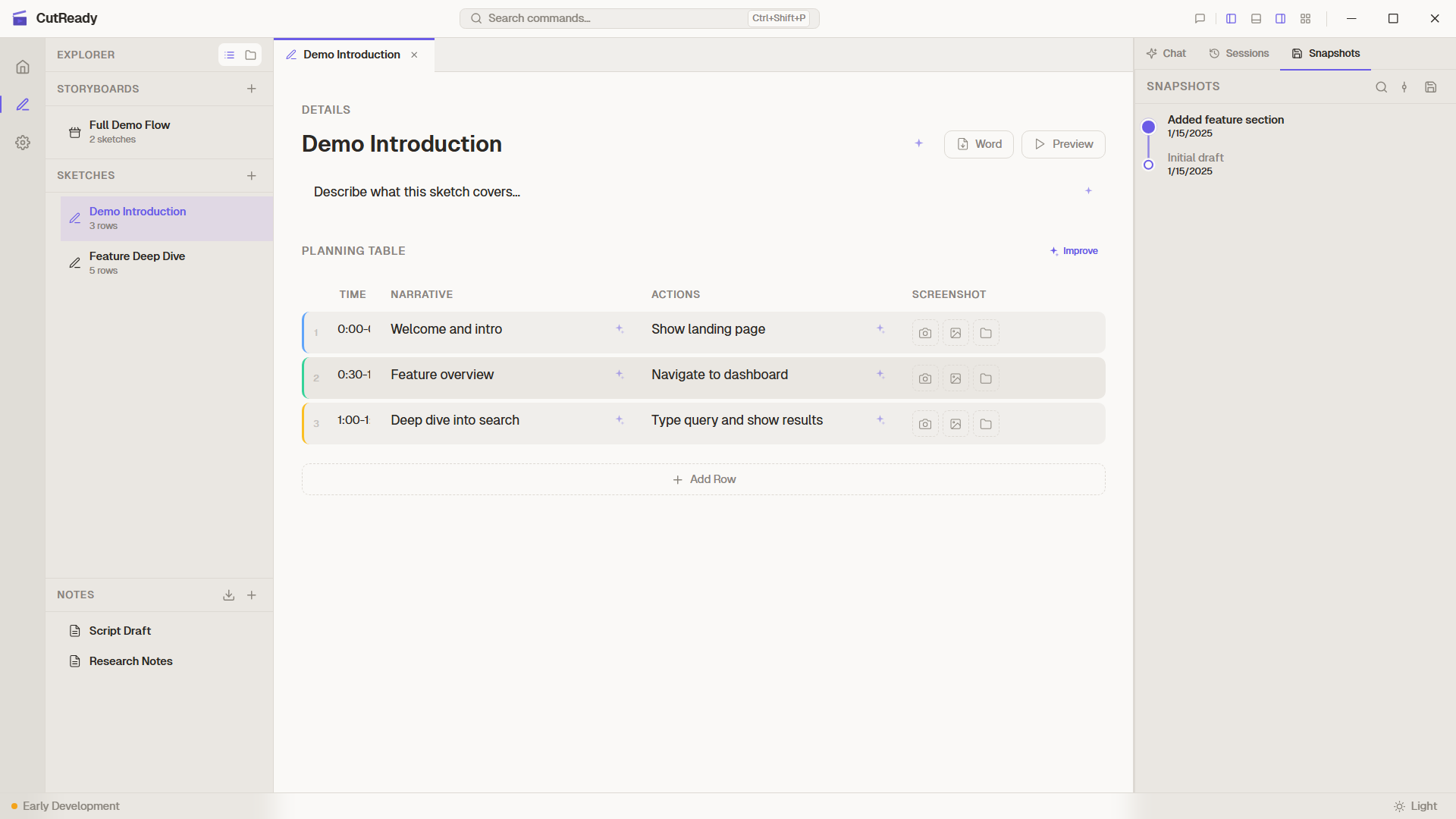
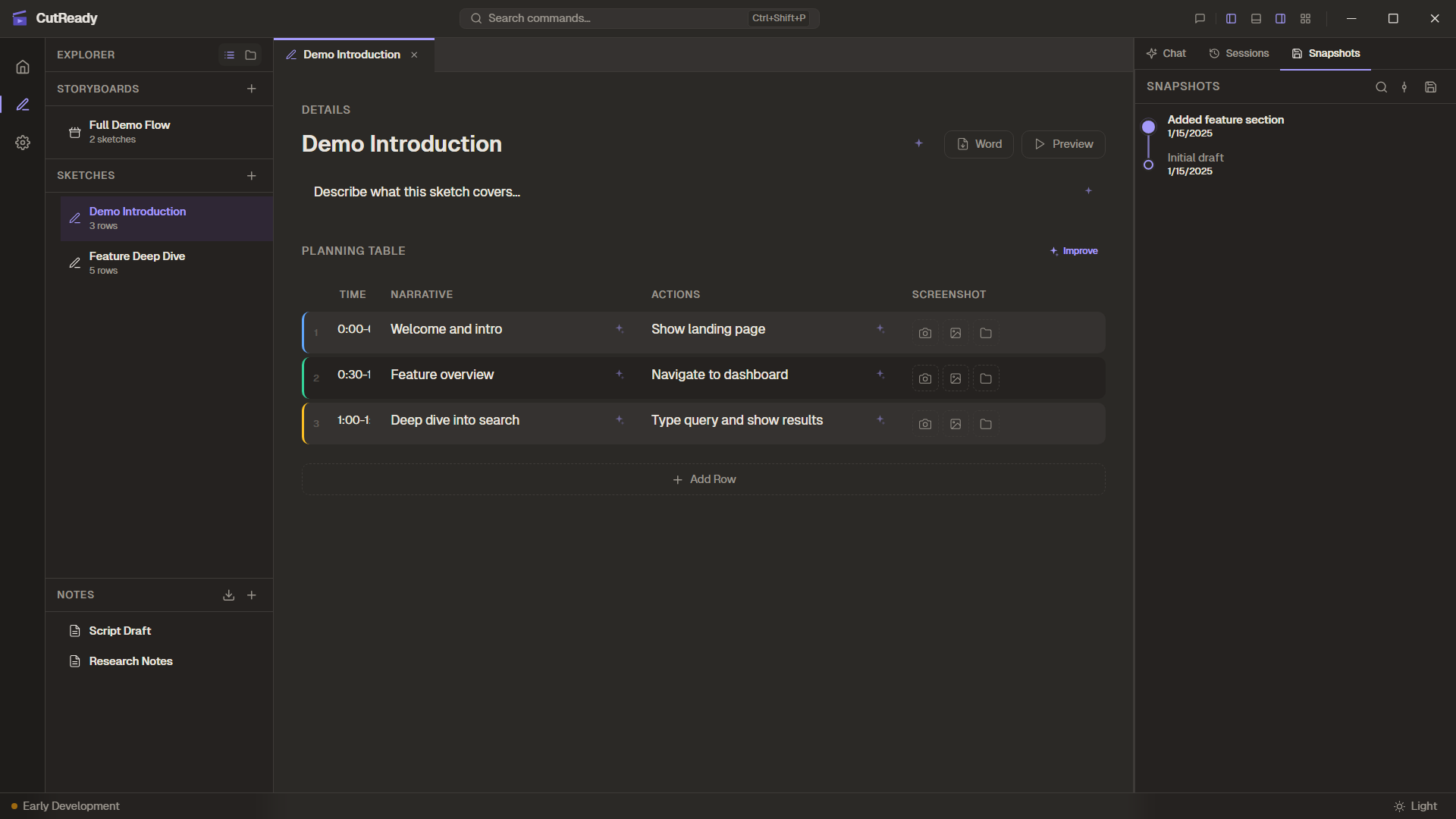
Section titled “Navigating History”The Snapshots panel shows a linear graph of your saved versions:
- Filled dots represent saved snapshots
- The topmost node is your current position (HEAD)
- Click any node to preview that version’s files
- The dirty indicator shows when you have unsaved changes
Restoring a Version
Section titled “Restoring a Version”Click any snapshot in the graph, then:
- Restore — Replace your current project state with that version
- Fork — Create a new timeline branching from that point
Timelines (Branching)
Section titled “Timelines (Branching)”Timelines let you explore different directions without losing your original work. When you fork from a past snapshot, CutReady creates a new timeline.
Creating a Timeline
Section titled “Creating a Timeline”- Navigate to any past snapshot in the graph
- Make a change and save — CutReady asks if you want to create a new timeline
- Give it a name (e.g., “Experiment”, “Client feedback version”)
- Your new timeline branches from that point
Switching Timelines
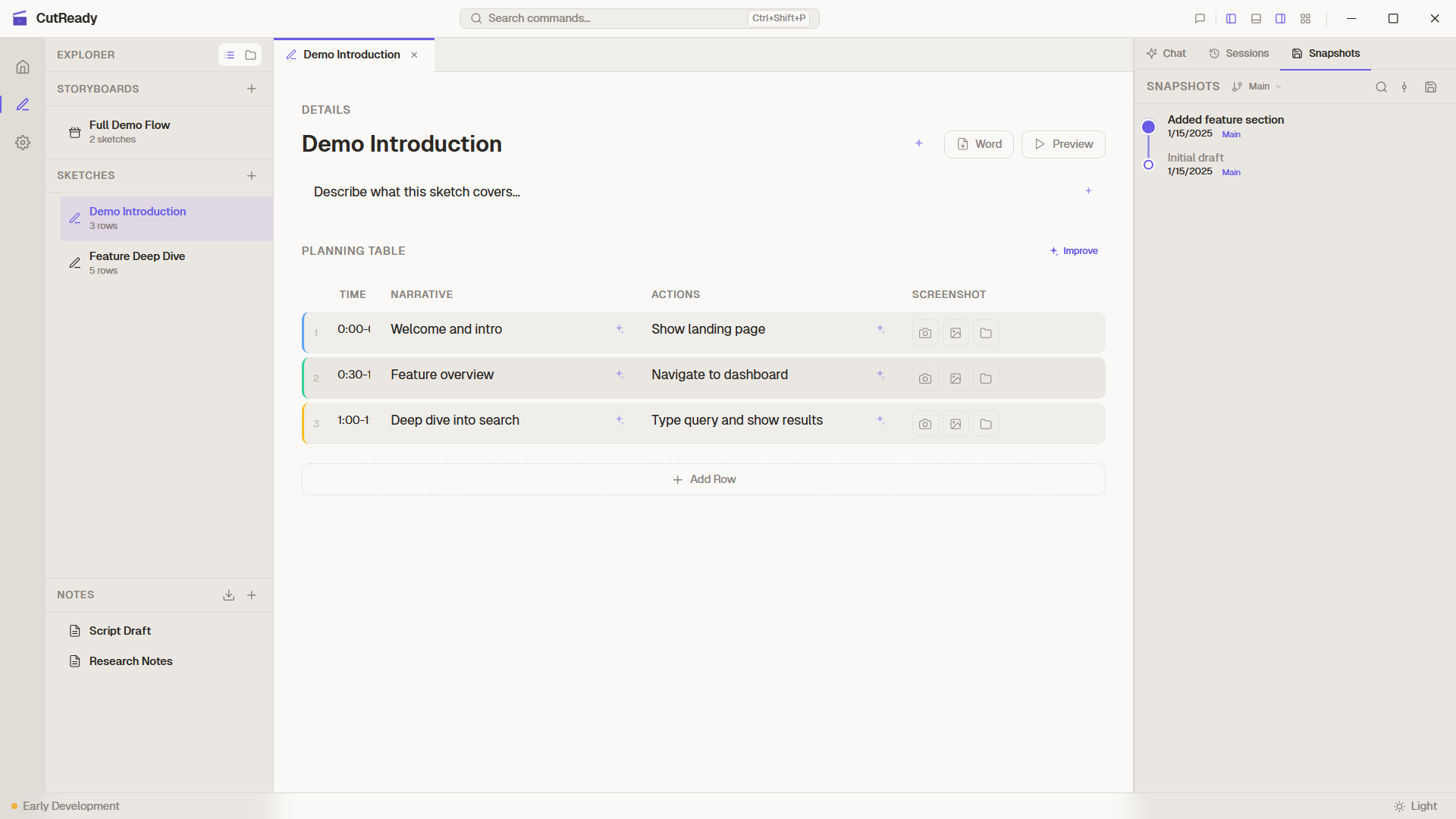
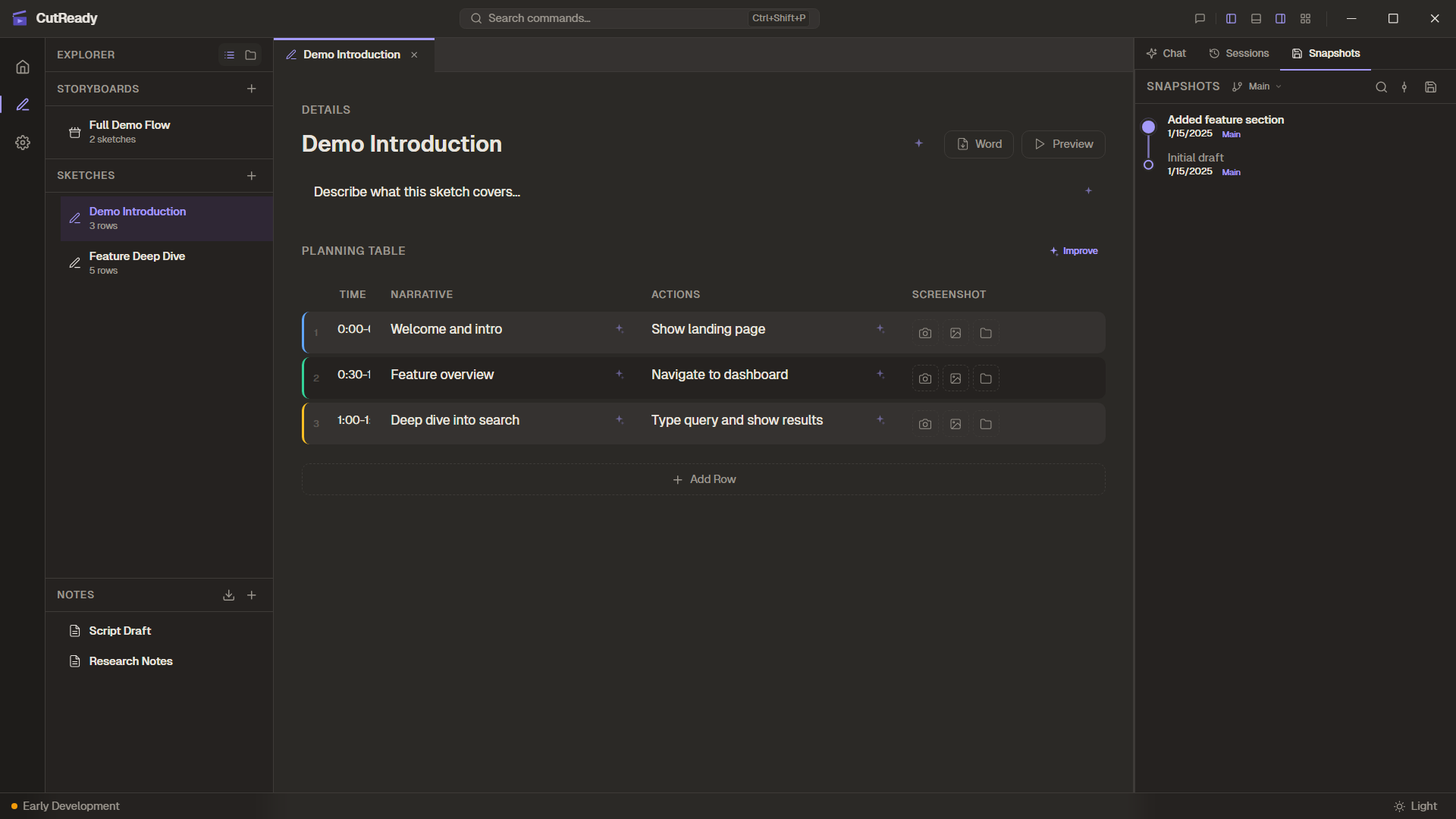
Section titled “Switching Timelines”The timeline selector in the Snapshots panel header shows your active timeline. Click it to see all available timelines and switch between them.
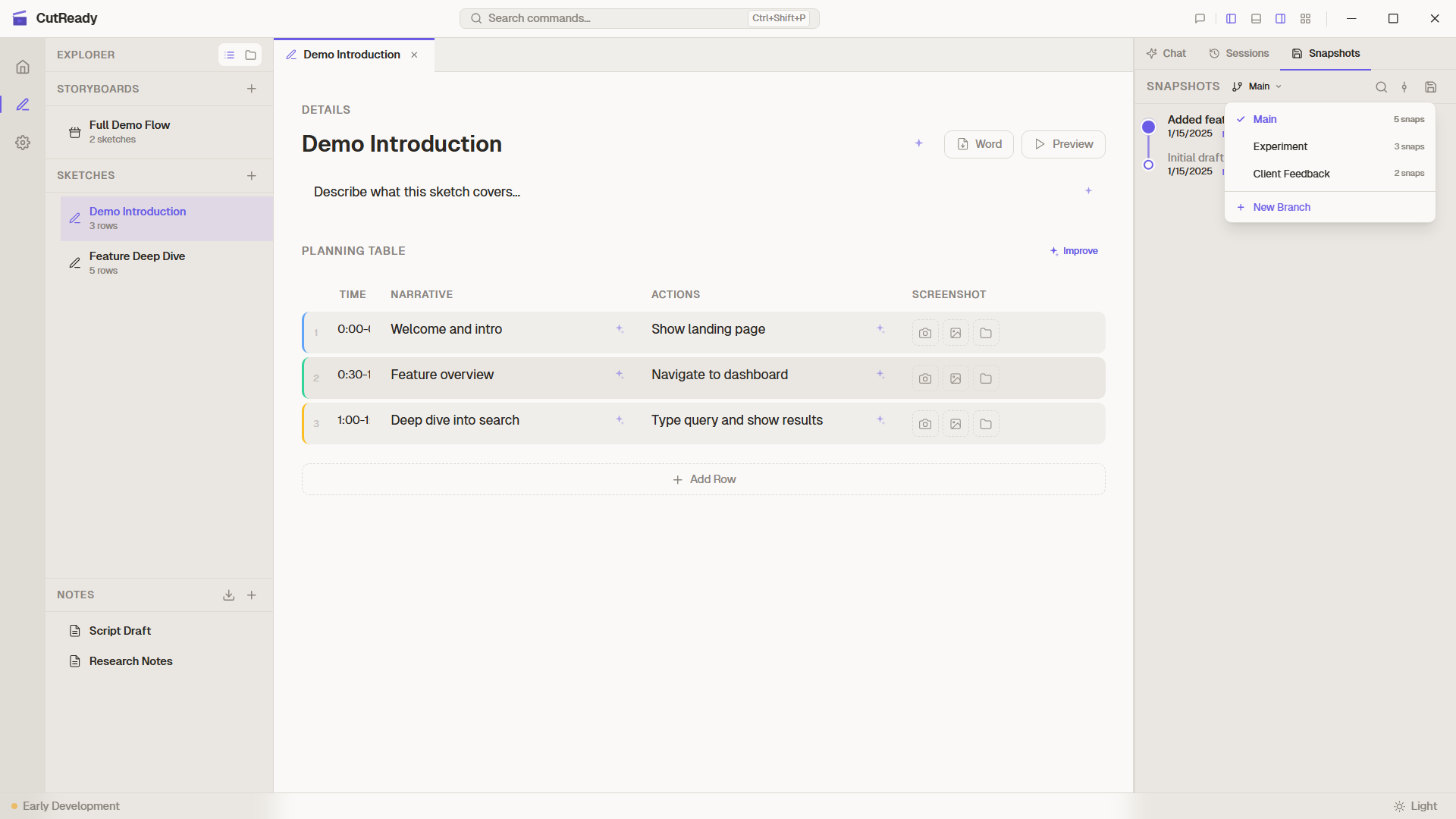
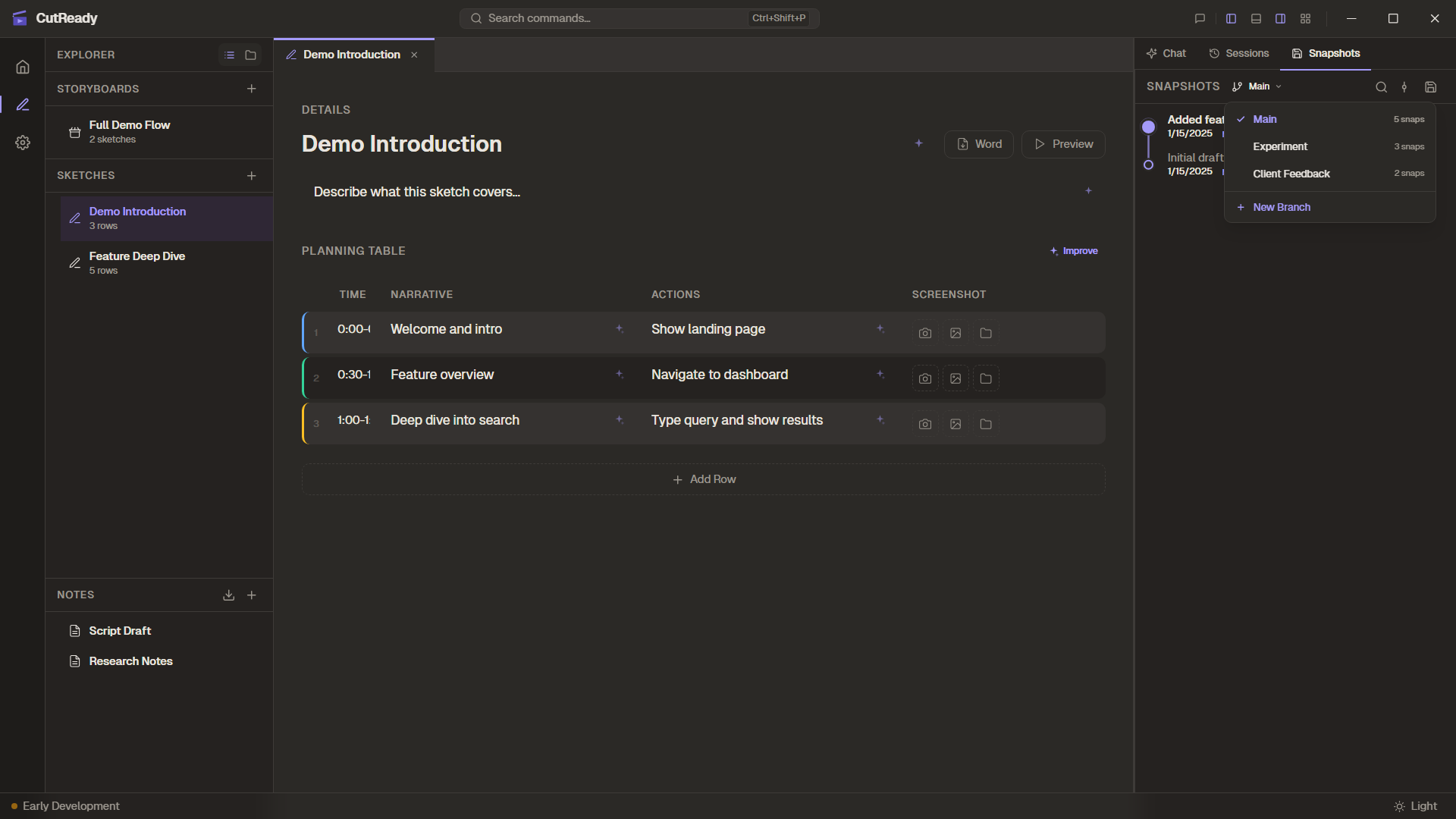
Each timeline in the dropdown shows:
- Timeline name and snapshot count
- Merge — Combine this timeline into the active one
- Promote — Make this timeline the new Main
- ✕ — Delete the timeline
Promoting a Timeline
Section titled “Promoting a Timeline”If you’ve been working on a fork and want to make it your primary direction, use Promote. This swaps the branch pointers so your fork becomes Main and the old Main becomes a named timeline.
The History Graph
Section titled “The History Graph”For a bird’s-eye view of all timelines and how they relate, open the History Graph — a full DAG (directed acyclic graph) visualization.
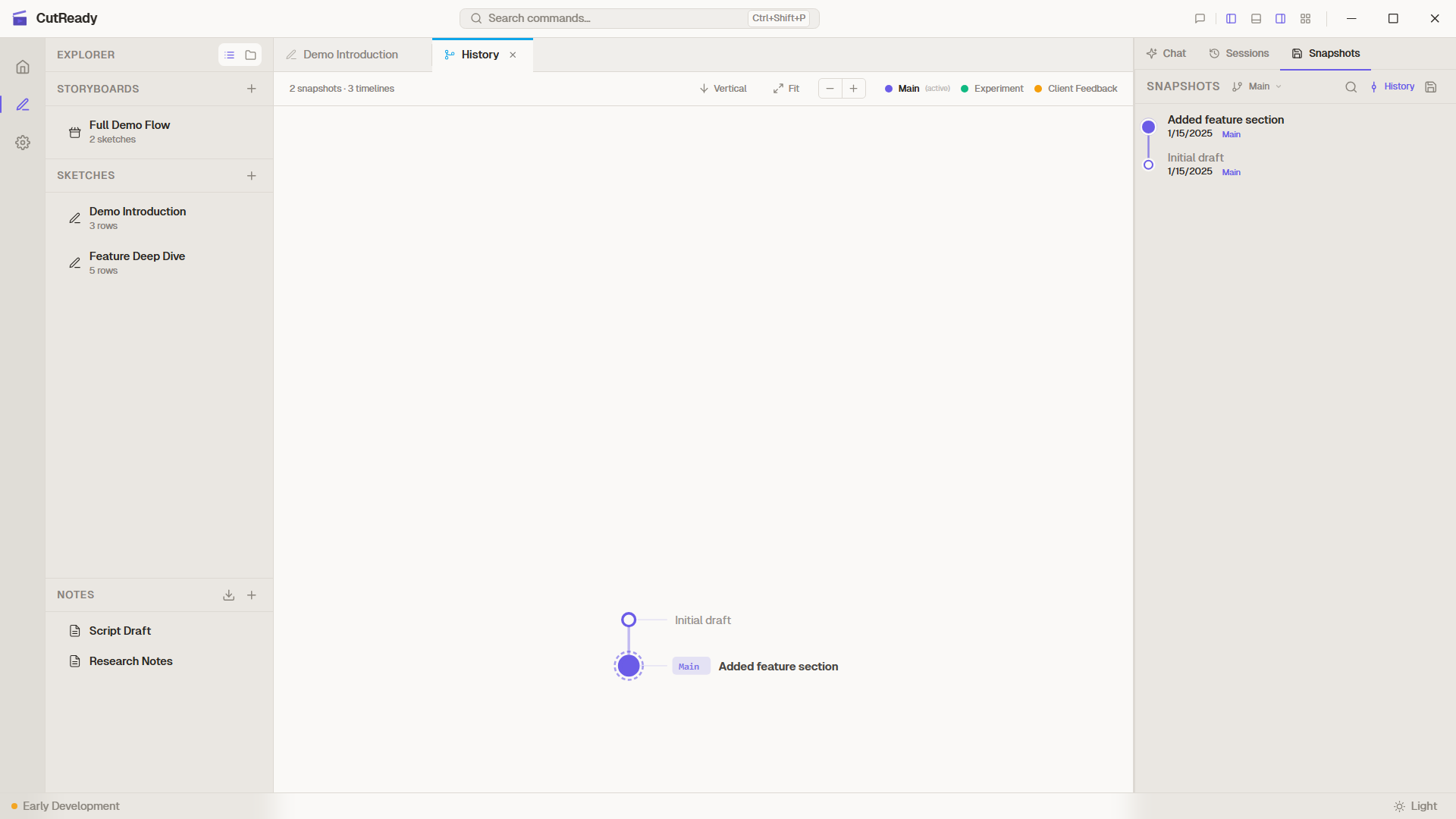
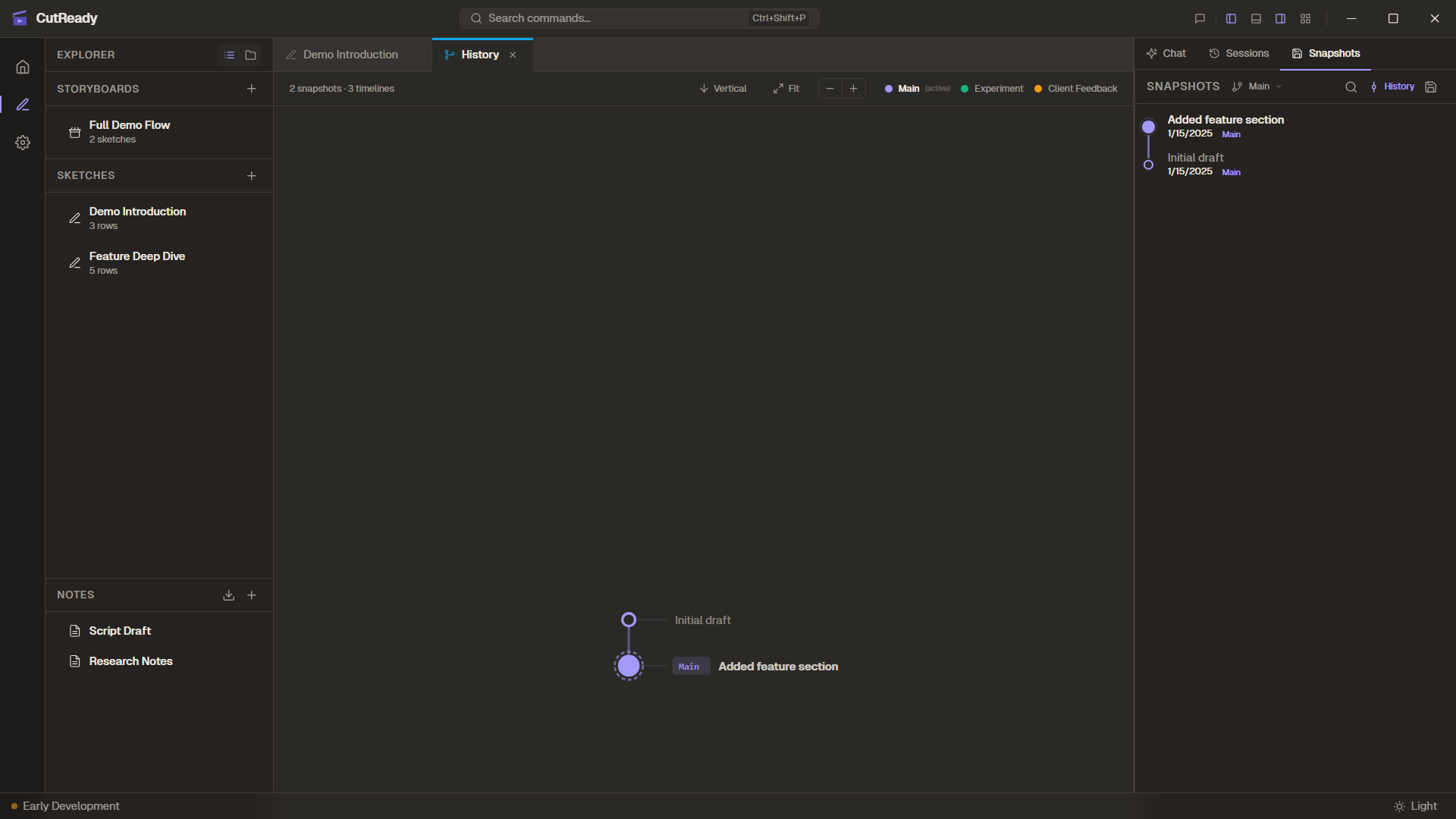
Click History in the Snapshots panel header to open it as a dedicated tab. The graph shows:
- Colored lanes for each timeline
- Fork points where timelines diverge
- Merge commits where timelines were combined
- Branch labels at each timeline’s tip
- Ancestry indicators showing where a timeline originated
See History Graph for details.
Technical Details
Section titled “Technical Details”- Snapshots are git commits stored in a
.snapshots/directory within the project - Each snapshot captures the full project tree (sketches, storyboards, notes)
- The graph is computed from the commit DAG using gix (gitoxide, pure-Rust git)
- No external git installation required — everything is built into the app
- Editor state (scroll position, cursor, open tabs) is preserved separately