AI Assistant
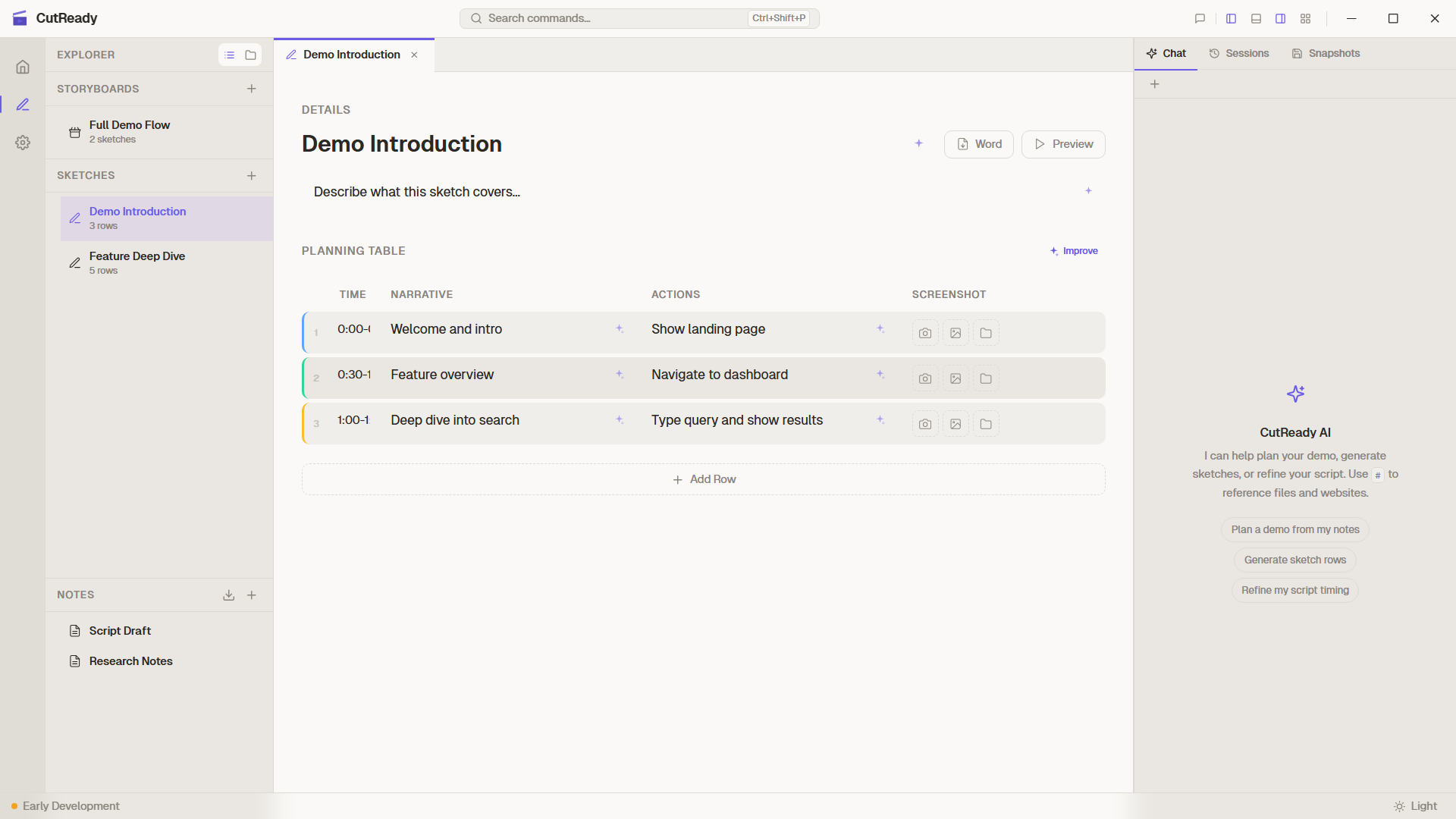
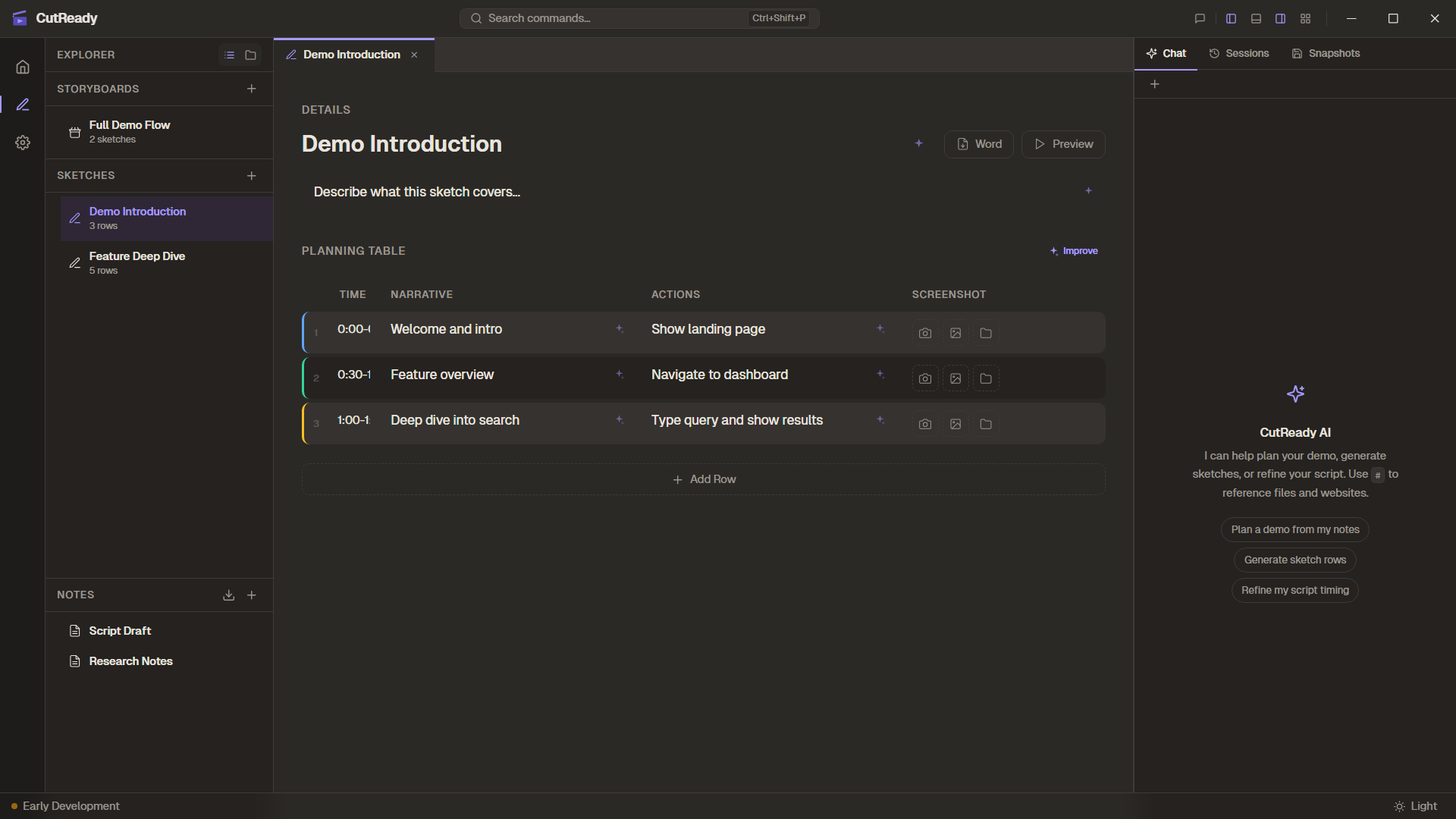
The AI Assistant is a chat-based panel that helps you plan, write, and refine your demo content. It can read your sketches, generate planning rows, improve narrative text, and make surgical edits — all through natural conversation.
Chat Panel
Section titled “Chat Panel”The chat panel sits alongside your editor and provides a familiar messaging interface:
- Send messages by typing in the input field and pressing Enter
- Streaming responses appear in real-time as the AI generates output
- Message history is preserved for the current session
- Session persistence — chat history is saved per project, so you can pick up where you left off
Built-in Agents
Section titled “Built-in Agents”CutReady includes three specialized agents, each tuned for a different task:
| Agent | Purpose | Best for |
|---|---|---|
| Planner | Sketch planning and structure | Generating planning rows, organizing demo flow |
| Writer | Narrative refinement | Improving voiceover text, making scripts engaging |
| Editor | Surgical edits | Precise changes to specific cells or rows |
Switch between agents using the agent selector dropdown at the top of the chat panel. Each agent has a distinct system prompt that shapes its behavior.
Tool Calls
Section titled “Tool Calls”The AI doesn’t just chat — it can read and modify your project files through tool calls. When the assistant needs to interact with your content, it invokes backend tools:
| Tool | What it does |
|---|---|
read_sketch | Reads the current sketch contents (including screenshot paths) |
set_planning_rows | Replaces all planning rows in a sketch (supports screenshots) |
update_planning_row | Updates a single row by index (supports screenshots) |
list_project_files | Lists files in the project directory |
list_project_images | Discovers available screenshots in the project |
read_note | Reads a markdown note file |
fetch_url_content | Fetches content from a URL for reference |
save_feedback | Saves user feedback to the app data directory |
Tool calls happen automatically as part of the conversation. You’ll see the results reflected in your editor in real-time.
Activity Panel
Section titled “Activity Panel”The Activity Panel provides a real-time log of everything the AI does behind the scenes:
- Actions are displayed newest-on-top for easy scanning
- Errors and warnings are color-coded for quick identification
- Tool calls, file reads, and modifications are all logged
- Sparkle button actions (silent prompts) appear here instead of in the chat
Reference Autocomplete
Section titled “Reference Autocomplete”Type # in the chat input to trigger autocomplete for project file references. This lets you mention specific sketches, notes, or storyboards inline so the AI knows exactly which document you’re referring to.
References appear as color-coded chips that match the file type:
- Sketches — violet
- Notes — rose/pink
- Storyboards — emerald/green
- Web URLs — blue
Referenced files are shown as footnotes at the end of messages, making it easy to see what context the AI is working with.
Feedback via Chat
Section titled “Feedback via Chat”You can submit app feedback directly through the chat by telling the AI
about an issue or suggestion. The assistant uses the save_feedback tool
to persist your feedback to the app data directory, where it appears in
Settings → Feedback alongside feedback submitted through the title bar.
Custom Agents
Section titled “Custom Agents”Beyond the built-in agents, you can define custom agents in Settings with your own system prompts. Custom agents appear in the agent selector alongside the built-in options and are useful for specialized tasks like writing for a particular audience or following specific style guidelines.