Notes & Markdown
Available
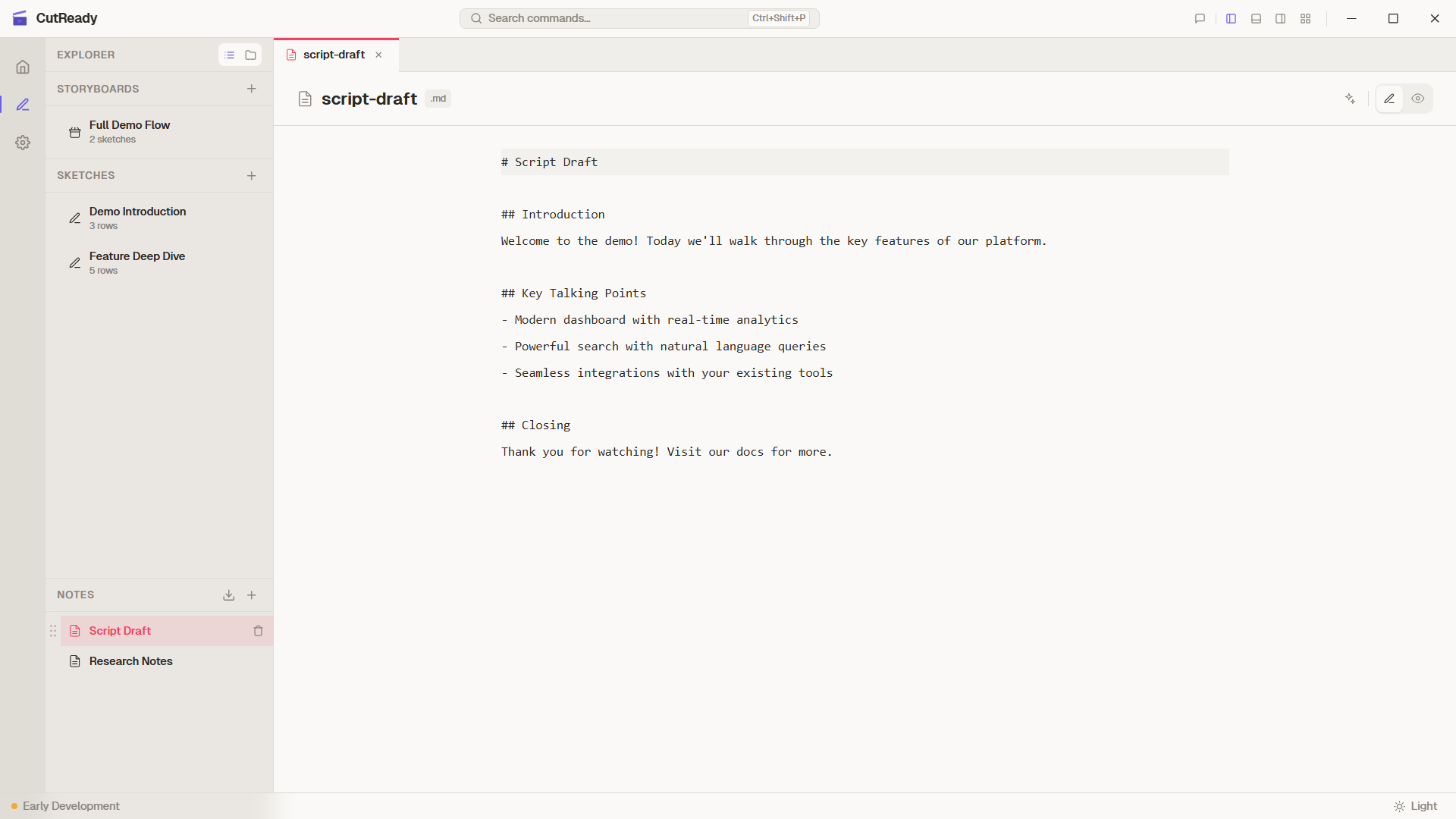
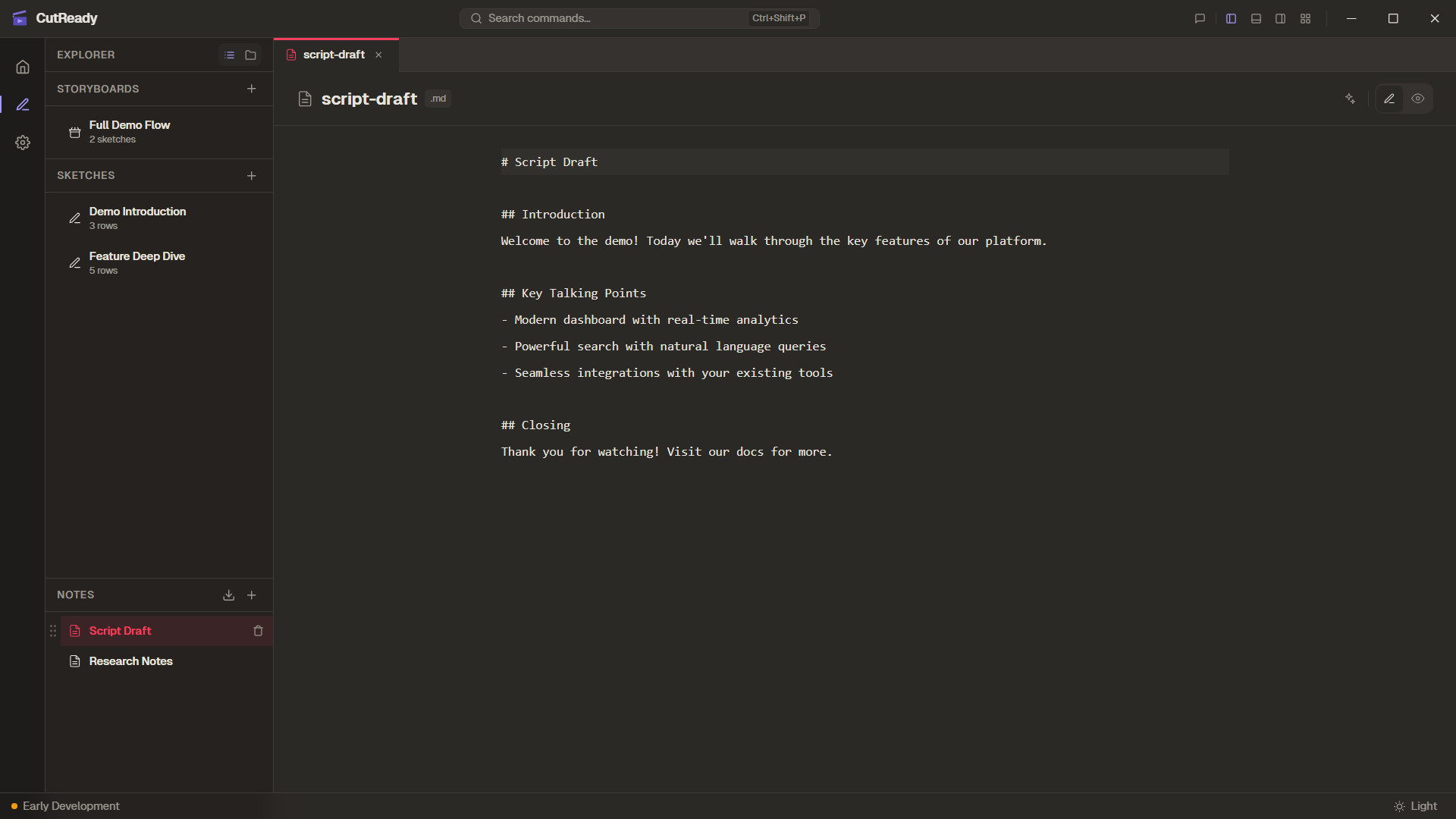
The markdown note editor with syntax highlighting
CutReady includes a Markdown Notes feature for keeping free-form project documentation alongside your sketches and storyboards.
Markdown Editor
Section titled “Markdown Editor”Notes use a CodeMirror-based editor with:
- Full markdown syntax highlighting
- Inline code and code block support
- Heading, list, and emphasis formatting
- Auto-save — changes are saved automatically as you type
- Live preview — renders markdown with proper formatting and local images
- AI cleanup — one-click ✨ button to clean up and improve note content
Rich Paste
Section titled “Rich Paste”When pasting content from Word, web pages, or other rich text sources, CutReady intelligently converts it to clean markdown:
- Simple content — converted via Turndown with optional AI refinement
- Complex content (tables, nested formatting, images) — uses AI-first conversion for better results
- Falls back gracefully if AI is unavailable
Use Cases
Section titled “Use Cases”- Demo scripts — Full narrative text before breaking it into table rows
- Setup notes — Document environment prerequisites for your demo
- Meeting notes — Capture feedback from demo reviews
- Research — Links, API docs, and reference material
- AI context — Notes are automatically available to the AI assistant when you’re editing them (the chat suggests “Improve this note”)
Creating Notes
Section titled “Creating Notes”- Click the + button in the storyboard list
- Select Note
- Start typing in the markdown editor
Notes appear alongside sketches and storyboards in the sidebar and can be reordered with drag-and-drop.
Document Import
Section titled “Document Import”CutReady can import external documents and convert them to markdown notes:
- Supported formats:
.docx,.doc,.pdf,.pptx - Click the import button in the sidebar storyboard list panel
- Select a file — CutReady extracts the text content and creates a new note
Imported documents become fully editable markdown notes that you can restructure, annotate, and use as reference material for your sketches.
Storage
Section titled “Storage”Notes are stored as .md files in the project’s notes/ directory and are
included in the project’s version history.