Sketch Editor
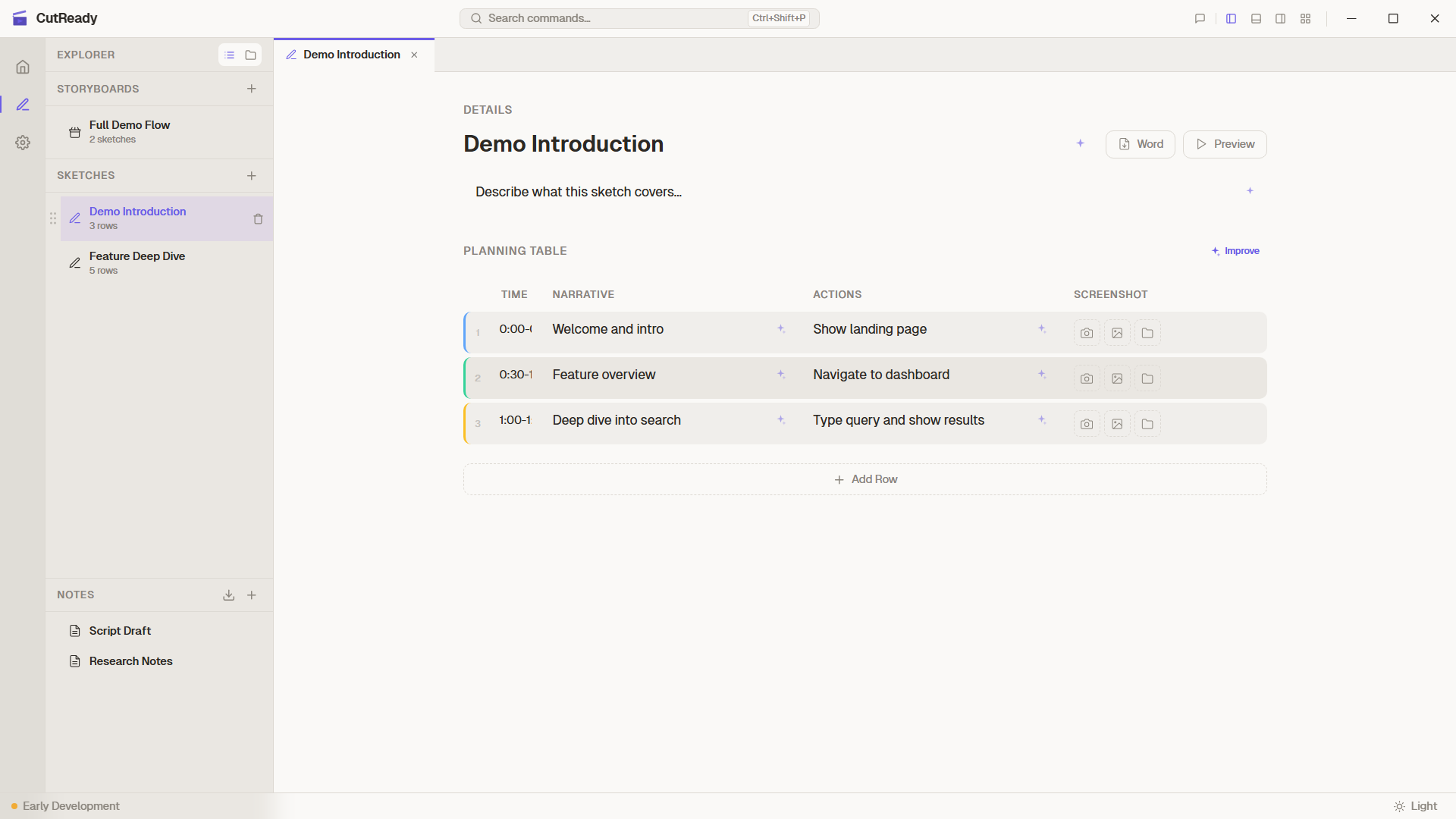
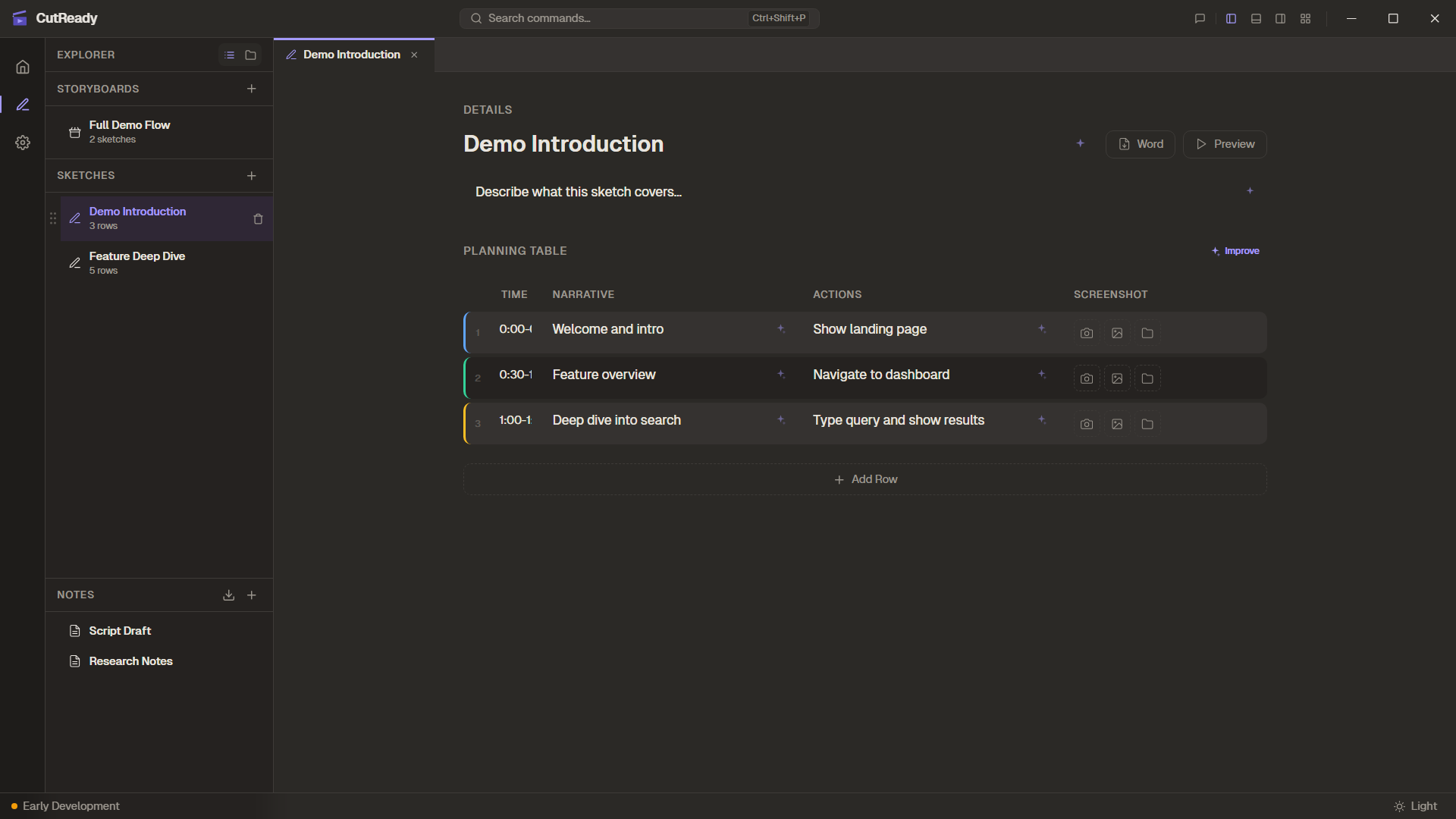
The Sketch Editor is where you plan your demo before recording anything. It provides a structured 4-column table for scripting your walkthrough, along with a title, description, and integrated screenshot capture.
Planning Table
Section titled “Planning Table”Each sketch contains a planning table with drag-and-drop reorderable rows. Every row has four columns:
| Column | Description |
|---|---|
| Time | Target timing for this segment (e.g., 0:30) |
| Narrative | What you’ll say — your voiceover script |
| Demo Actions | What happens on screen — clicks, navigation, typing |
| Screenshot | Reference image showing the expected screen state |
Inline Editing
Section titled “Inline Editing”Click any cell to edit it directly. The table supports:
- Rich text formatting in narrative and action cells
- Nested bullet lists at any depth (sub-bullets render correctly)
- Drag handles on the left to reorder rows
- Add/remove rows with the toolbar buttons
- Keyboard navigation:
Tabto move between cells,Ctrl+Enterto add a row
Screenshot Capture
Section titled “Screenshot Capture”Each row’s screenshot cell has a capture button that opens the Screen Capture Overlay. This lets you:
- Select from multiple monitors
- Draw a region to capture, or capture the full screen
- The captured image is stored with the sketch and displayed as a thumbnail
- Click any thumbnail to open a lightbox for full-size preview
AI-Powered Improvements
Section titled “AI-Powered Improvements”The Sketch Editor includes ✨ sparkle buttons on the title, description, and each planning row. These provide one-click AI improvements:
- Empty fields — The sparkle button generates content based on context (e.g., generates a title from description and planning rows)
- Populated fields — The sparkle button improves existing content (refines wording, adds detail, fixes grammar)
Sparkle buttons use the configured Azure OpenAI endpoint in silent mode — results appear directly in the field without opening the chat panel.
Document Lifecycle
Section titled “Document Lifecycle”Sketches progress through lifecycle states:
- Draft — Initial planning phase, freely editable
- Recording Enriched — After recording, actions are linked back to sketch rows
- Refined — After AI agent processing (coming soon)
- Final — Locked for production
Versioning
Section titled “Versioning”Every Ctrl+S creates a named snapshot of the current sketch state. The
Version History panel (right sidebar) shows a visual timeline graph where
you can:
- Browse all saved versions
- Preview any past version without losing current work
- Restore or fork from a previous version
- See dirty/unsaved state indicators
Keyboard Shortcuts
Section titled “Keyboard Shortcuts”| Shortcut | Action |
|---|---|
Ctrl+S | Save version (opens label prompt) |
Tab / Shift+Tab | Navigate between cells |
| Drag handle | Reorder rows |