Storyboards
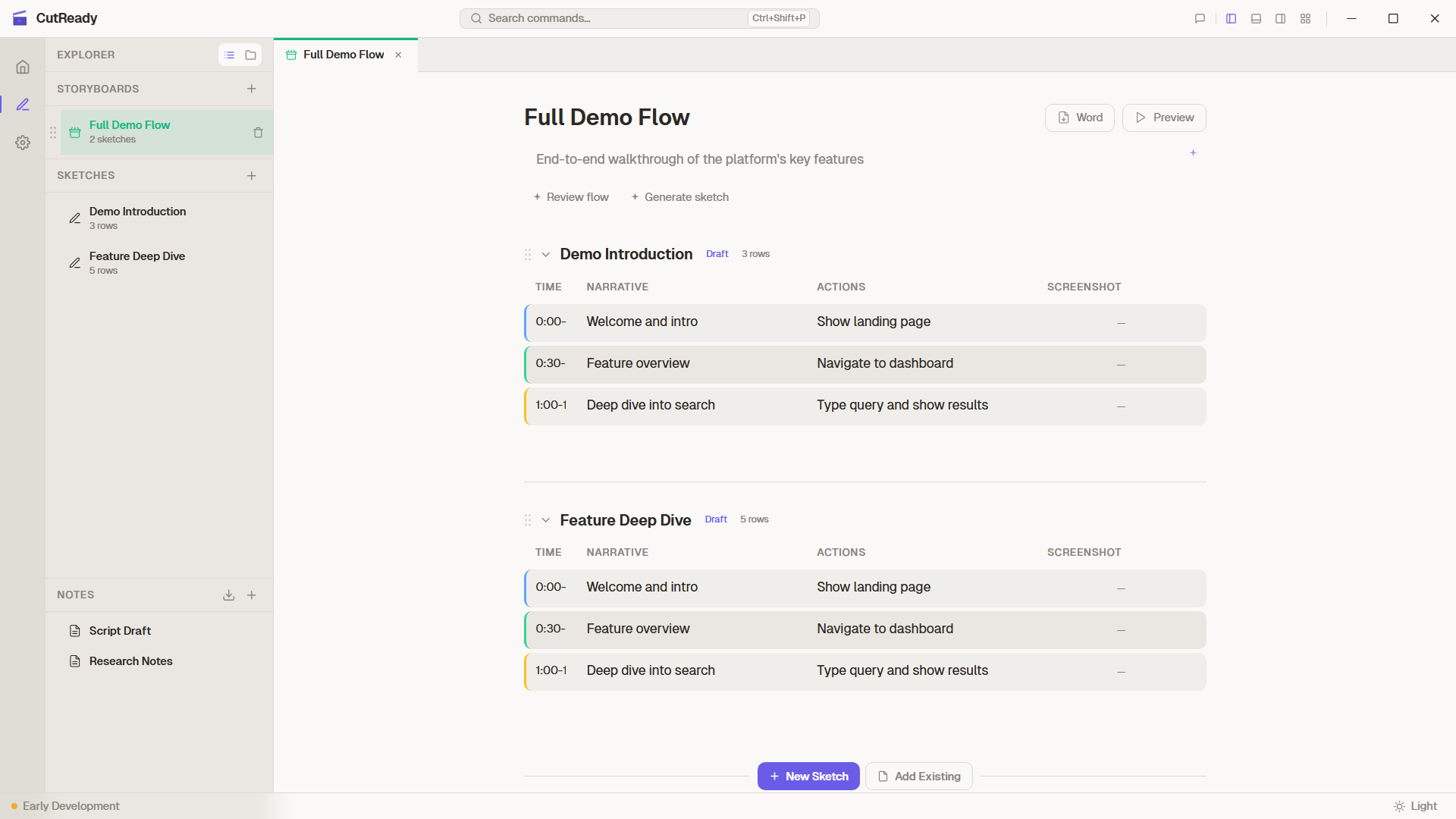
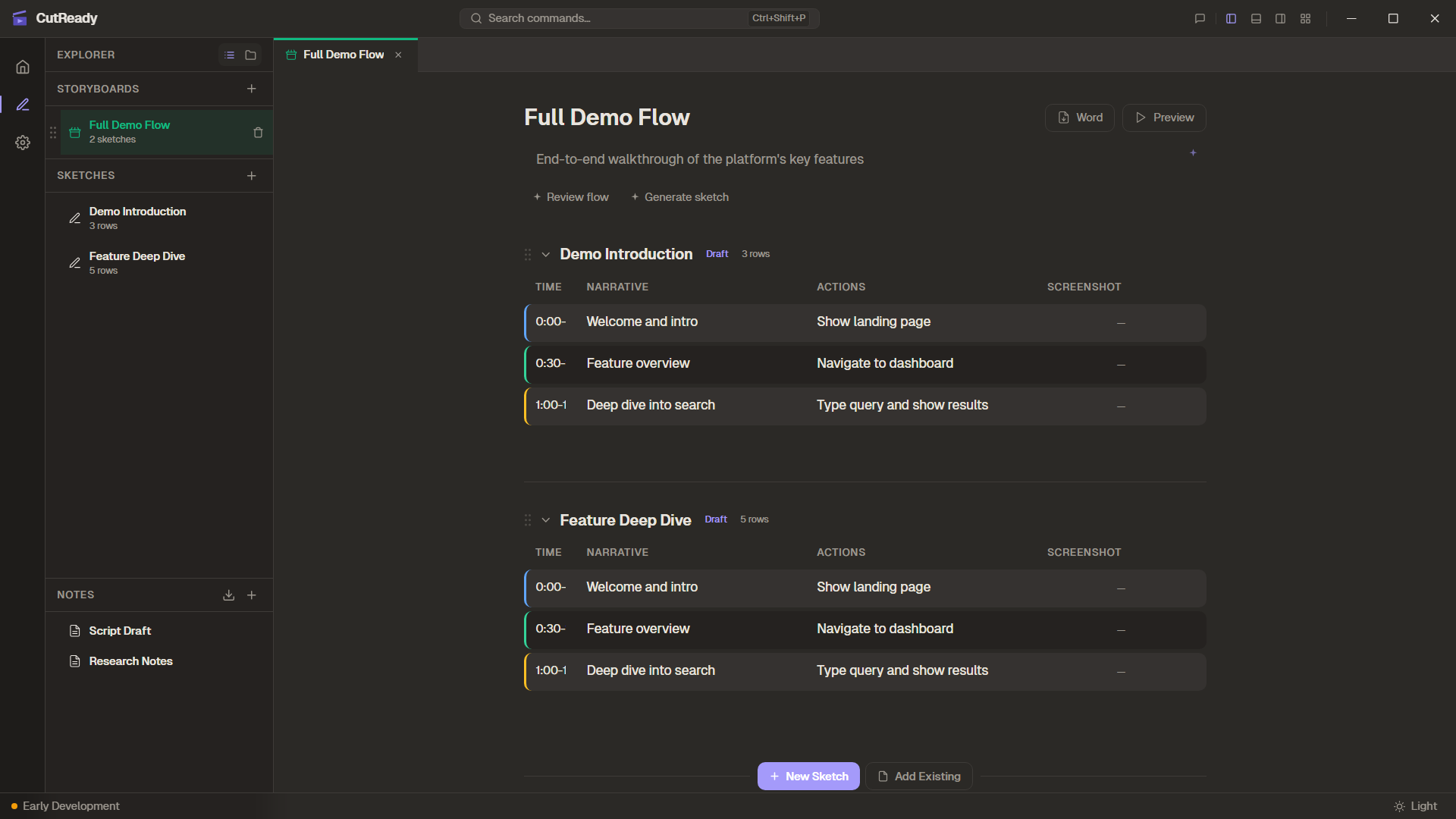
A storyboard is an ordered sequence of sketches that forms a complete demo flow. While a sketch is a single scene (one planning table with narrative, actions, and screenshots), a storyboard chains multiple sketches together into a cohesive presentation.
Sketches vs. Storyboards
Section titled “Sketches vs. Storyboards”Think of it like a movie:
| Sketch | Storyboard | |
|---|---|---|
| What it is | A single scene | A sequence of scenes |
| Contains | Title + planning table (time, narrative, actions, screenshots) | Title + ordered list of sketch references |
| File | .sk | .sb |
| Purpose | Plan one segment of a demo | Organize an entire demo flow |
| Editing | Full inline editing of table rows | References sketches — click through to edit |
A sketch is the building block. A storyboard is the assembly.
Storyboard Structure
Section titled “Storyboard Structure”A storyboard contains an ordered list of sketch references — pointers to
.sk files in your project.
Product Launch Demo (storyboard)├── intro.sk├── install-setup.sk├── first-run.sk├── dashboard-tour.sk├── api-walkthrough.sk└── closing-cta.skSketches can exist independently or be referenced by multiple storyboards. Deleting a sketch that’s referenced by a storyboard will show a warning.
Creating a Storyboard
Section titled “Creating a Storyboard”- Click the + button in the sidebar
- Select Storyboard
- Give it a title (e.g., “Q1 Product Demo”)
- The storyboard editor opens with an empty canvas
Adding Sketches
Section titled “Adding Sketches”From the storyboard editor:
- ”+ New Sketch” — Creates a blank sketch and adds it to the storyboard
- ”+ Add Existing” — Opens a searchable picker to select from your sketch library
- Insert buttons appear between sketches for precise positioning
Organizing
Section titled “Organizing”- Drag and drop sketches to reorder them within the storyboard
- Collapse/expand individual sketches to show or hide their planning tables
- Each sketch card shows its title, lifecycle state badge, and row count
Preview Mode
Section titled “Preview Mode”Click Preview to launch a fullscreen presentation built from the storyboard:
- Select which monitor to present on (multi-monitor support)
- CutReady builds a slide deck: storyboard title → each sketch’s title + planning rows
- Navigate through the presentation to review the full demo flow
The Sidebar
Section titled “The Sidebar”The Storyboard List sidebar shows all project documents together:
| Document Type | Icon | Description |
|---|---|---|
| Sketch | ✏️ | Individual planning scenes |
| Storyboard | 📋 | Sequences of sketches |
| Note | 📝 | Free-form markdown documents |
Sidebar features:
- Drag and drop to reorder the list
- Search to filter by name
- File tree view as an alternate navigation mode
- Context menu (right-click) for rename, delete, and other actions
- Order is persisted in a
.manifestfile
Tabbed Editing
Section titled “Tabbed Editing”Opening any document adds it as a tab. You can have multiple tabs open:
- Document name and type icon
- Dirty/unsaved state indicator (dot)
- Close button on each tab