Projects
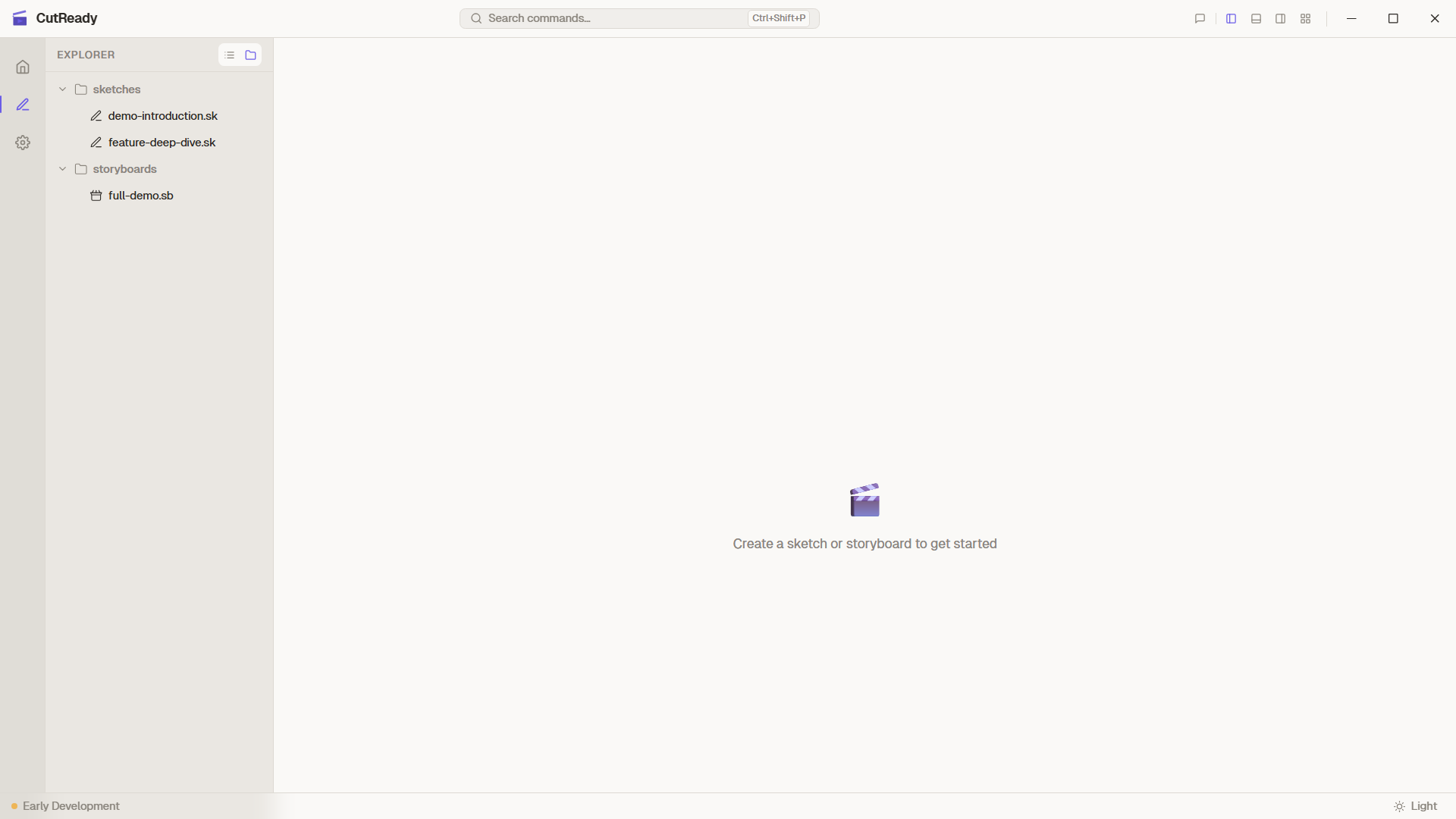
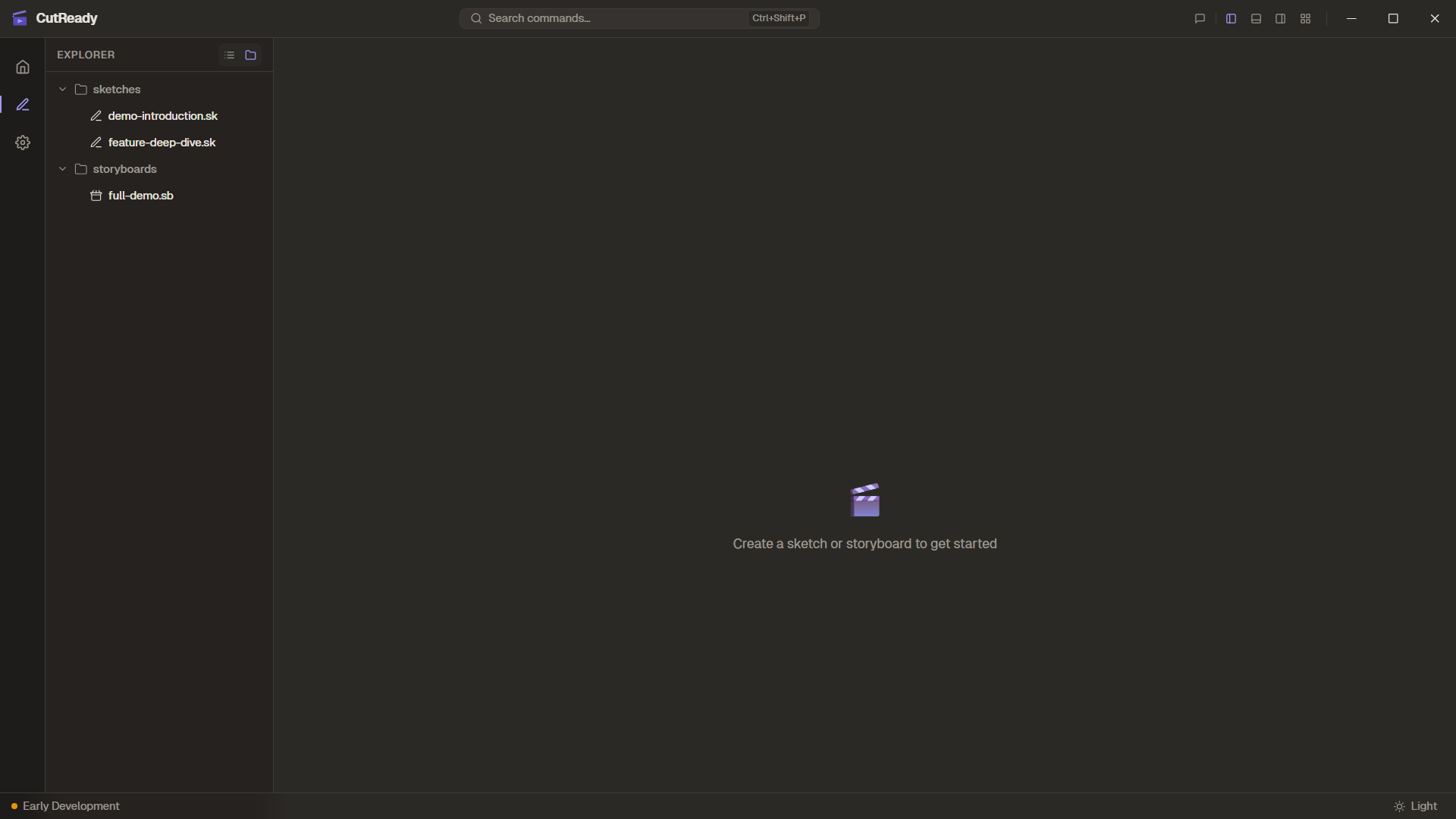
Every demo in CutReady lives inside a project — a folder on your filesystem that holds sketches, storyboards, notes, screenshots, and version history.
Creating a New Project
Section titled “Creating a New Project”-
Open CutReady — You’ll see the Home screen with your recent projects.
-
Click “New Project” — A system folder picker opens. Choose or create a folder where CutReady will store project files.
-
Name your project — Enter a descriptive title like “Product Demo Q1”. CutReady initializes the folder with a
project.jsonmanifest and a.git/directory for version history.
Opening an Existing Project
Section titled “Opening an Existing Project”Use “Open Project” on the Home screen to browse to an existing CutReady
project folder. CutReady detects the project.json file and loads the project.
Your most recently used projects appear in the Recent Projects list on the Home screen for quick access.
Project Folder Structure
Section titled “Project Folder Structure”CutReady uses a flat directory layout. All project documents live at the root of the project folder (or optionally nested in subdirectories):
my-demo-project/├── project.json ← Project manifest (name, metadata)├── .cutready-order.json ← Sidebar ordering for documents├── .git/ ← Version history (managed by gix)├── intro.sk ← Sketch file├── demo-flow.sb ← Storyboard file├── research-notes.md ← Markdown note├── screenshot-001.png ← Captured screenshot└── screenshot-002.pngFile Types
Section titled “File Types”| Extension | Type | Description |
|---|---|---|
.sk | Sketch | Structured planning table with narrative, actions, and screenshots |
.sb | Storyboard | Ordered sequence of sketch references |
.md | Note | Free-form markdown document |
.png / .jpg | Screenshot | Reference images captured from screen |
Project Manifest (project.json)
Section titled “Project Manifest (project.json)”The project.json file at the root of every project stores the project name
and metadata. CutReady reads this file to identify a directory as a valid
project.
Sidebar Ordering (.cutready-order.json)
Section titled “Sidebar Ordering (.cutready-order.json)”The .cutready-order.json file persists the order of documents in the sidebar.
When you drag-and-drop documents to rearrange them, CutReady writes the new
order to this file so it’s preserved across sessions.
Version History (.git/)
Section titled “Version History (.git/)”Each project contains an embedded .git/ directory managed by gitoxide
(gix), a pure-Rust git implementation. This is completely independent of any
source code repositories — it’s used solely for document version tracking.
Screenshots
Section titled “Screenshots”Captured screenshots are stored directly in the project directory alongside your documents. When you use the screen capture feature from a sketch row, the image file is saved to the project folder and referenced by the sketch.
Switching Projects
Section titled “Switching Projects”Use the Home button in the sidebar (🏠) to return to the Home screen where you can create or open a different project. Your current project state is preserved and restored when you switch back.