Importing Existing Materials
If you already have demo scripts, slide decks, or research documents, CutReady can import them directly into your project.
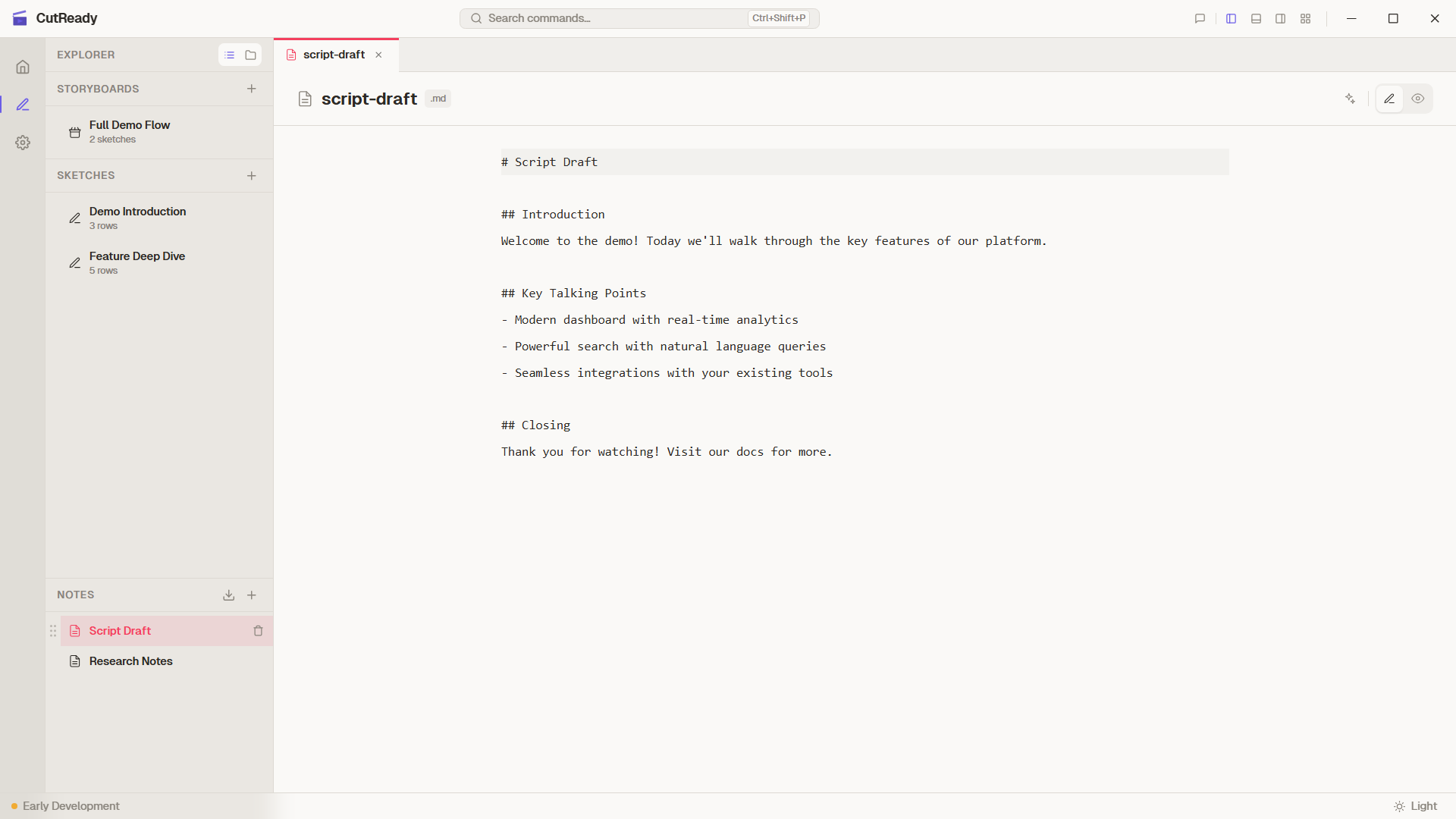
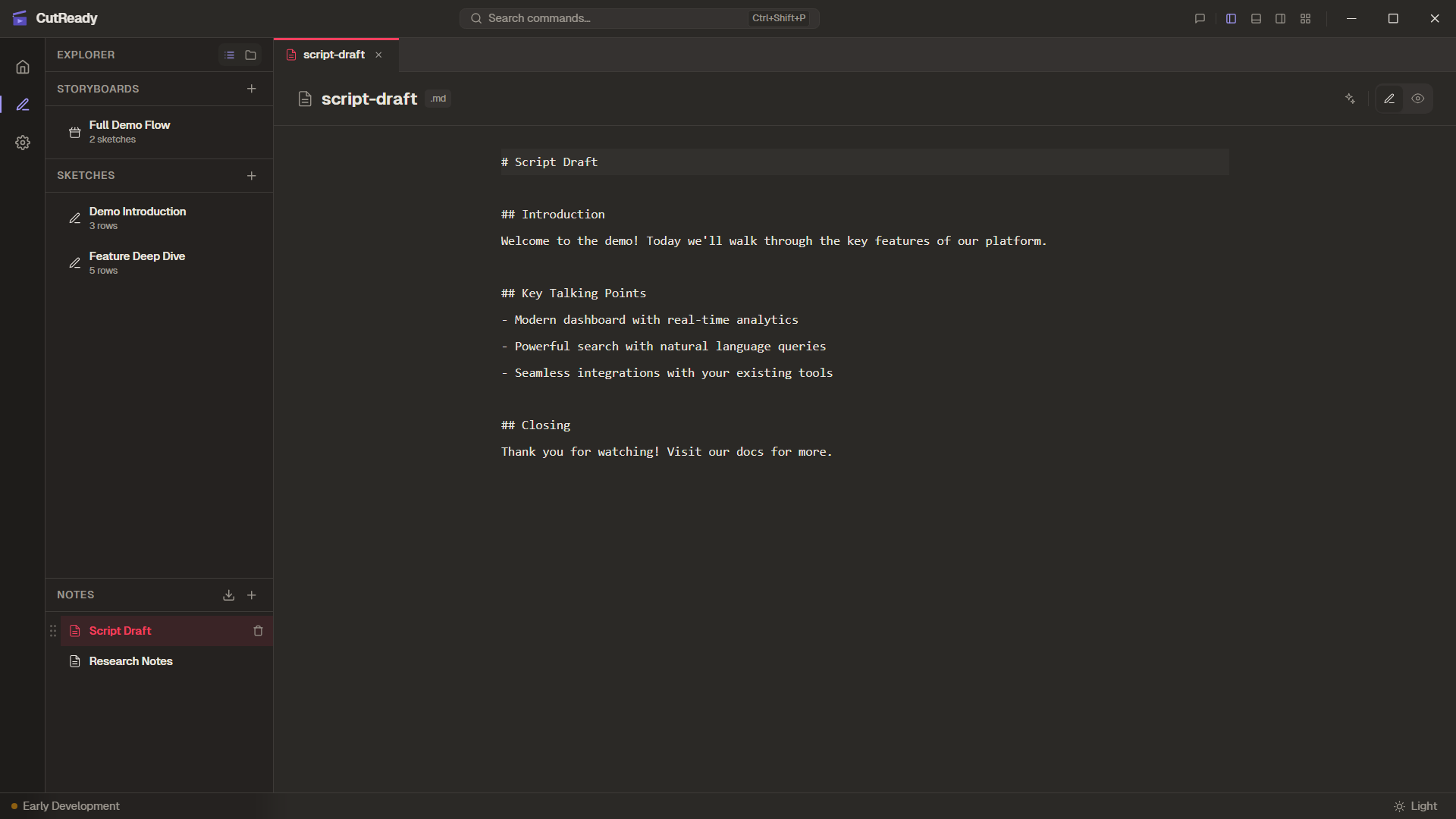
Imported files become markdown notes that you can reference, search, and feed to the AI assistant.
Importing a Slide Deck
Section titled “Importing a Slide Deck”PowerPoint decks are a natural starting point for demo planning. Each slide becomes a section in the generated note.
-
Click Import in the StoryboardList sidebar.
-
Select your
.pptxfile from the file picker. -
Review the generated note — CutReady creates a markdown note with slide titles as headings, body text as paragraphs, and speaker notes included below each slide.
-
Check extracted images — Any embedded images from the deck are saved to your project directory and linked in the note.
Importing a Word Document
Section titled “Importing a Word Document”Word documents (.docx) are fully parsed with headings, paragraphs, and
embedded images preserved.
-
Click Import in the sidebar.
-
Select your
.docxor.docfile. -
Review the result — Modern
.docxfiles retain heading hierarchy, bold, italic, and list formatting. Legacy.docfiles are imported as plain text.
For legacy .doc files, only text content is extracted. If formatting is
critical, consider converting to .docx first.
Importing a PDF
Section titled “Importing a PDF”PDF import works best for text-heavy documents. Layout-dependent content (tables, multi-column layouts) may not convert perfectly.
-
Click Import in the sidebar.
-
Select your
.pdffile. -
Review the extracted text — Content is extracted page-by-page and assembled into a markdown note.
Handling Protected Documents
Section titled “Handling Protected Documents”Some documents have DRM protection or restricted edit/copy permissions. When CutReady encounters a protected file:
- A warning dialog explains that the document is protected
- Automated extraction is blocked to respect permissions
- A clipboard fallback is offered:
-
Open the document in its native application (Word, Acrobat, etc.)
-
Copy the content you need to the clipboard.
-
Create a new note in CutReady and paste the content.
This approach respects document permissions while still letting you work with the material.
Using Imported Notes
Section titled “Using Imported Notes”Once imported, notes appear in the sidebar alongside sketches and storyboards. Here are some ways to work with them:
- Reference in chat — Type
#in the AI chat input to autocomplete the note name and include it as context - Side-by-side editing — Keep the imported note open in one tab while editing a sketch in another
- AI transformation — Ask the assistant to read the note and generate planning rows from it
- Research reference — Use imported documents as background material while you write the sketch manually